Student accounts
The Student Accounts area gives you a consolidated view of each student's financial standing — their current balance, payment history, outstanding invoices, and account controls. This is where you go when a parent calls asking about their child's fees.
Student payment profiles
Navigation: Finance → Payment Profiles
A student payment profile is the master record that links a student to their financial history in the system. It stores stable references used by payment gateways and controls certain account behaviours.
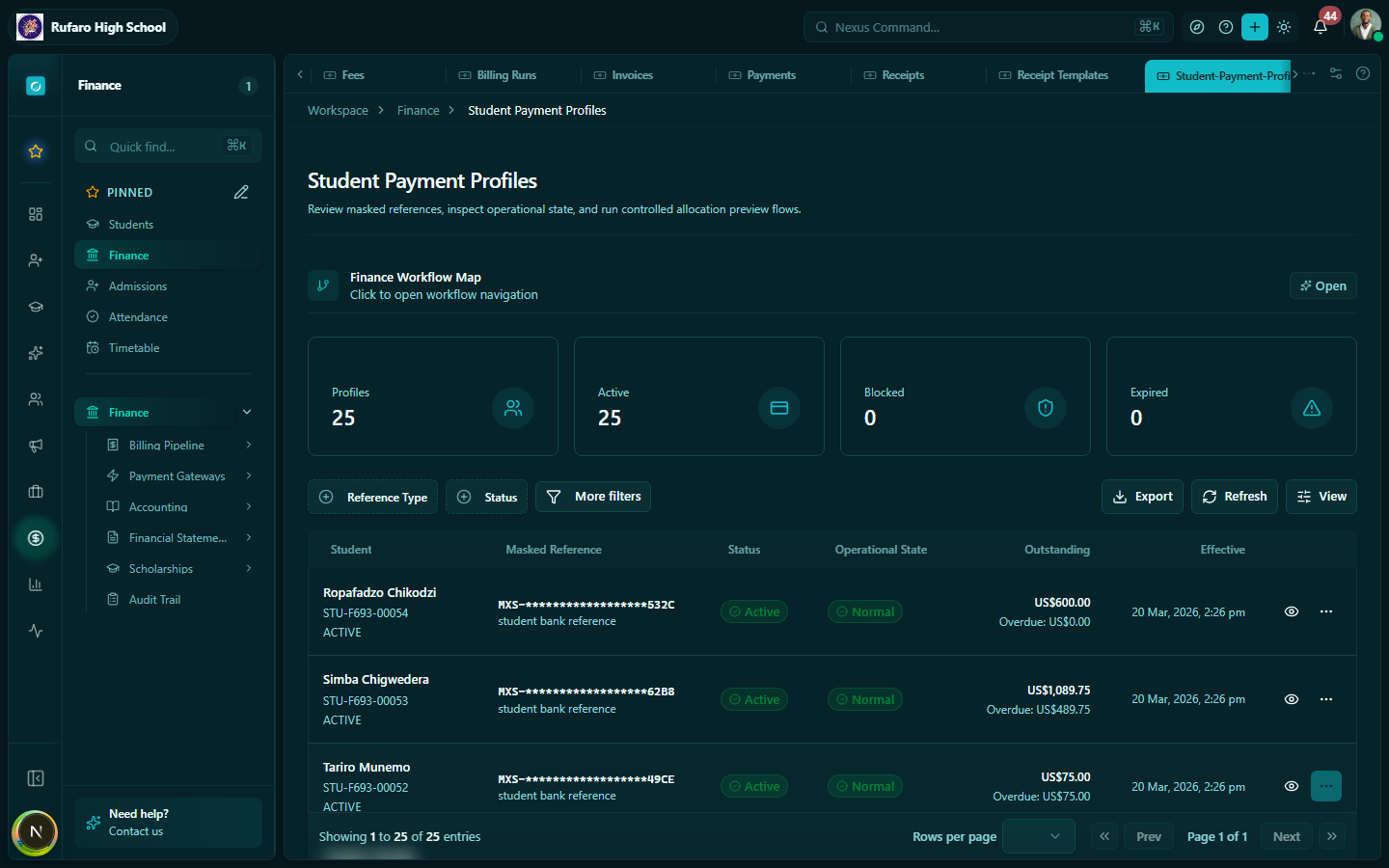
What the payment profile contains
| Field | Description |
|---|---|
| Student | Link to the student People record |
| Account status | Active, Suspended, or Frozen |
| Gateway reference | Stable token used by online payment gateways to identify this student |
| Payment restrictions | Whether online payments are enabled for this student |
| Notes | Internal finance notes |
Account status
| Status | Effect |
|---|---|
| Active | Normal — the student can pay via all channels |
| Suspended | Online payments are blocked; manual (cash/transfer) payments still work |
| Frozen | All payments blocked until the status is lifted by a finance admin |
Frozen accounts are typically used when a fee dispute is under review or when a student's enrolment status is unclear.
Updating a payment profile
- Click on a student row to open their payment profile
- Click Edit
- Update the account status or notes
- Click Save
Student financial summaries
Navigation: Finance → Student Summaries
The Student Summaries page shows a financial snapshot for every student — ideal for the bursar doing a term-end review.
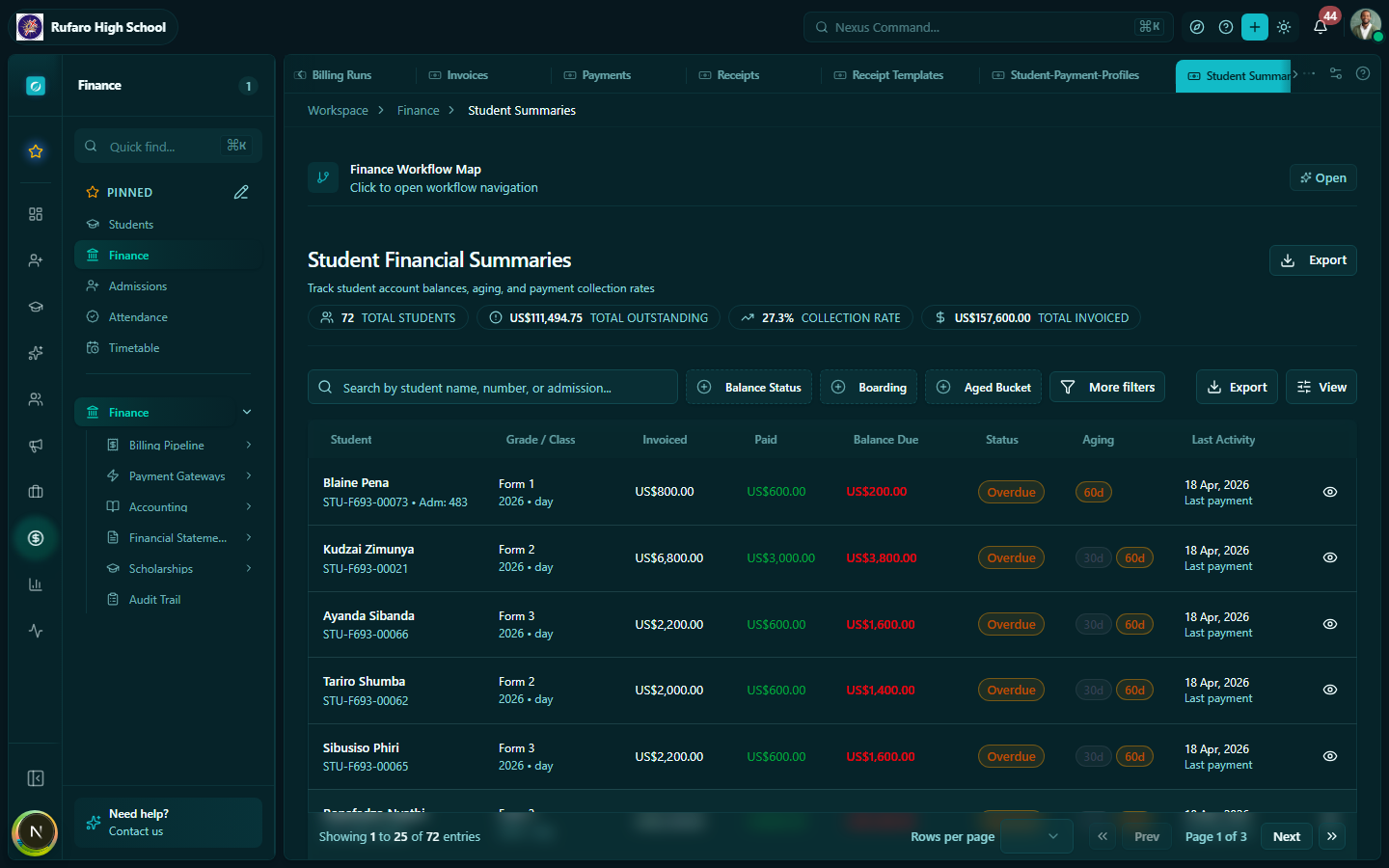
Key columns
| Column | Description |
|---|---|
| Total billed | Sum of all invoices for this student in the selected period |
| Total paid | Sum of all payments recorded against their invoices |
| Outstanding balance | Total billed minus total paid |
| Days overdue | Number of days since the oldest unpaid invoice's due date |
| Last payment | Date of the most recent payment recorded |
Filtering summaries
| Filter | Options |
|---|---|
| Term / Year | See balances for a specific term or the full year |
| Status | All / Fully paid / Has outstanding / Overdue |
| Grade / Class | Filter to a grade or specific class division |
| Balance threshold | Show only students with balance above a set amount |
Sorting and identifying high-priority accounts
Sort by Outstanding balance (descending) to find the students who owe the most. Sort by Days overdue to find the oldest unpaid accounts.
Viewing a student's full account history
Click on a student row to open their full account detail:
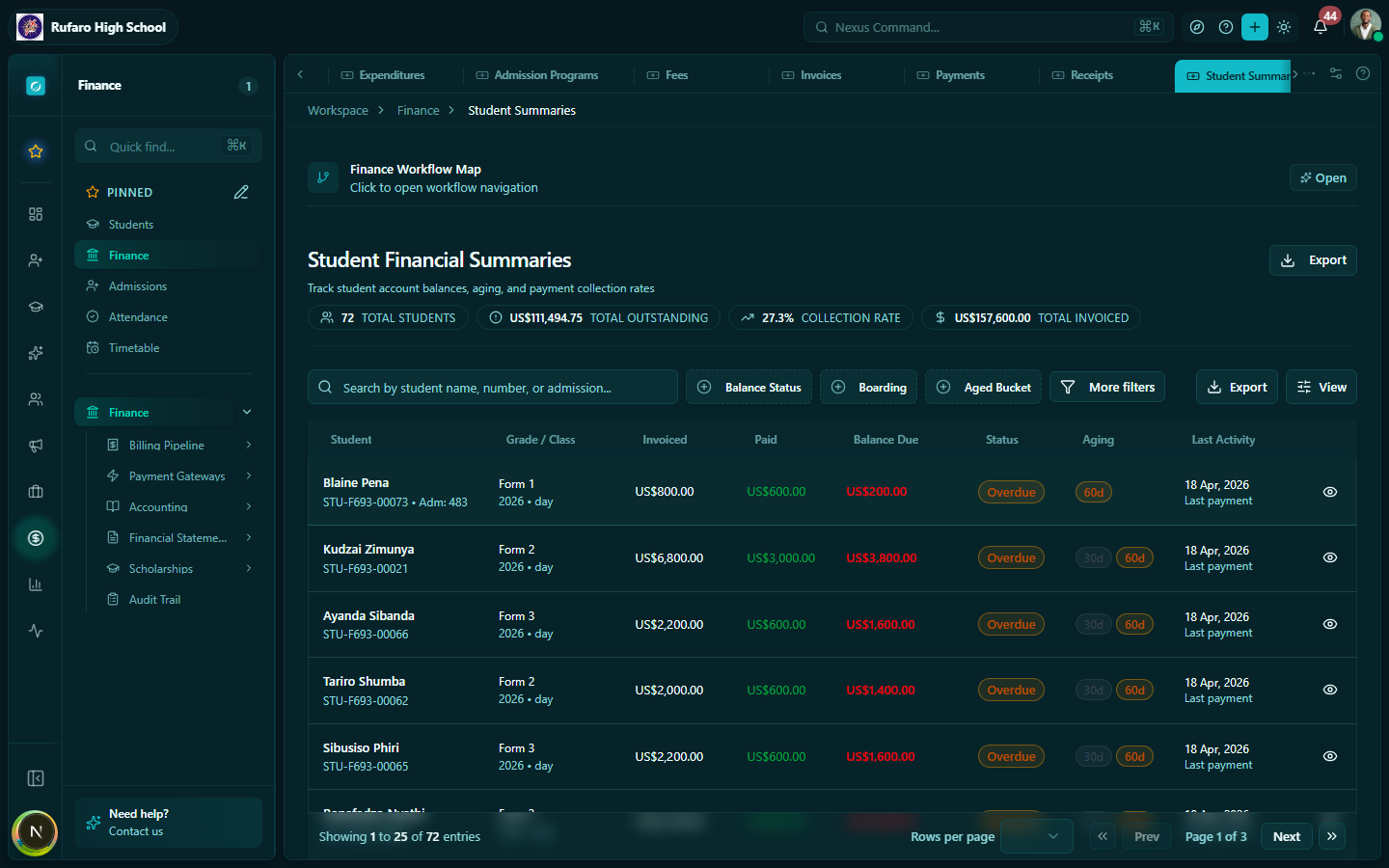
The detail view shows all invoices, payments, and receipts for that student across all terms.
Using Student Summaries for parent meetings
When meeting with a parent about fees:
- Open Student Summaries
- Search for the student
- Click the row to open their account
- The Invoices tab shows every invoice with status and due date
- The Payments tab shows every payment with receipt links
- The Adjustments tab shows any discounts or surcharges applied
Exporting student balances
- Apply filters (e.g., status = Overdue, grade = Form 2)
- Click Export → CSV
- The export includes all visible columns
This export is commonly used to:
- Prepare letters to parents about outstanding fees
- Share with the head teacher for review meetings
- Track collection progress week by week
Sending payment reminders from Student Summaries
You can trigger a bulk payment reminder directly from this page:
- Filter to Status = Overdue
- Select the students you want to contact
- Click Send reminder
- Choose the communication channel (Email / SMS)
- Review the message (uses your Communications module template)
- Click Send
Coordinate with the school's Communications module to set up a payment reminder template in advance so it's ready when you need it.