Sign in and first-time access
This guide walks you through the complete sign-in process for Makronexus Education, from tenant discovery to accessing your dashboard.
Overview
Makronexus Education uses a multi-tenant architecture where each organization (tenant) has isolated data. The sign-in process:
- Discovers which tenant(s) your email belongs to
- Authenticates your credentials against the selected tenant
- Optionally verifies MFA if enabled
- Prompts to trust your device for future logins
Prerequisites
Before signing in, ensure you have:
| Requirement | Description |
|---|---|
| Account credentials | Email and password provided by your school administrator or Makronexus support |
| MFA device (if required) | Authenticator app (TOTP) or other second-factor device if your organization enforces MFA |
| Supported browser | Chrome, Firefox, Safari, or Edge (latest versions recommended) |
If this is your first login, you may have received an activation email. Click the link in that email to set your password before signing in.
Sign-in process
Step 1: Open the login page
Navigate to your organization's Makronexus Education URL or the main platform URL. You'll see the Find your school screen.
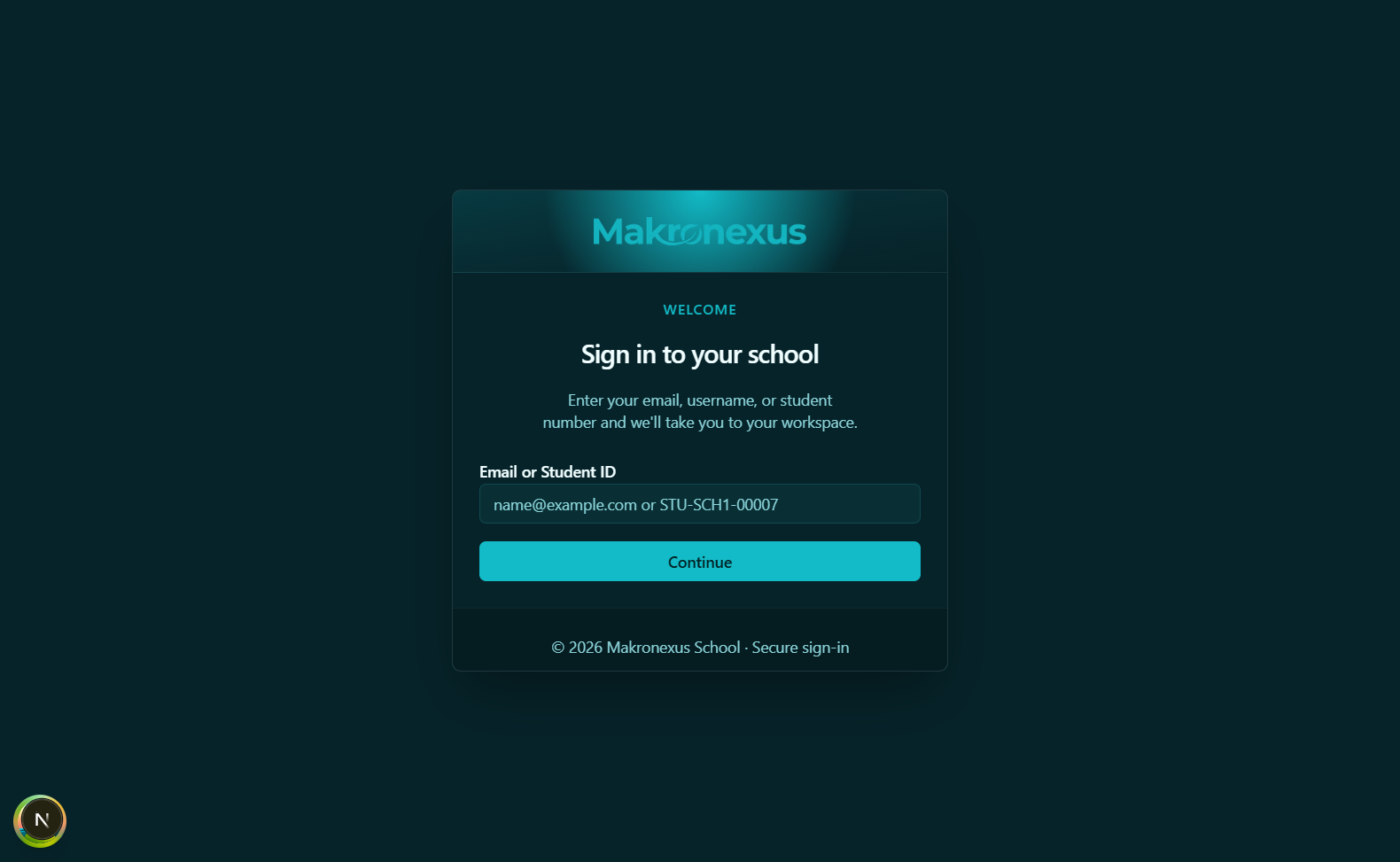
Sign-in page showing the first step of the tenant discovery flow.
Step 2: Discover your tenant
- Enter your email address in the email field
- Click Continue
The system searches for organizations associated with your email. This is called tenant discovery.
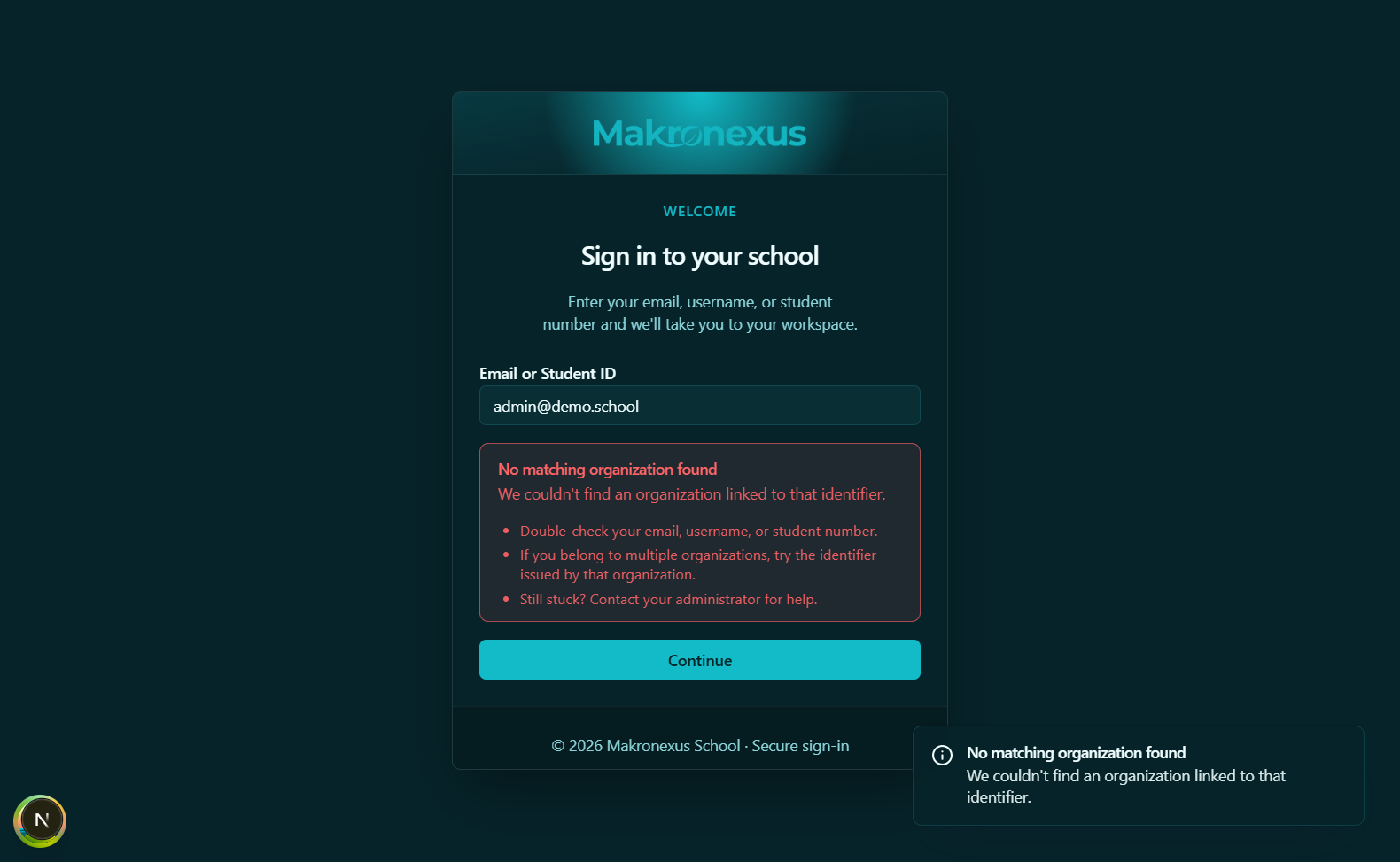
Actual tenant-discovery error state when the identifier is not linked to an organization.
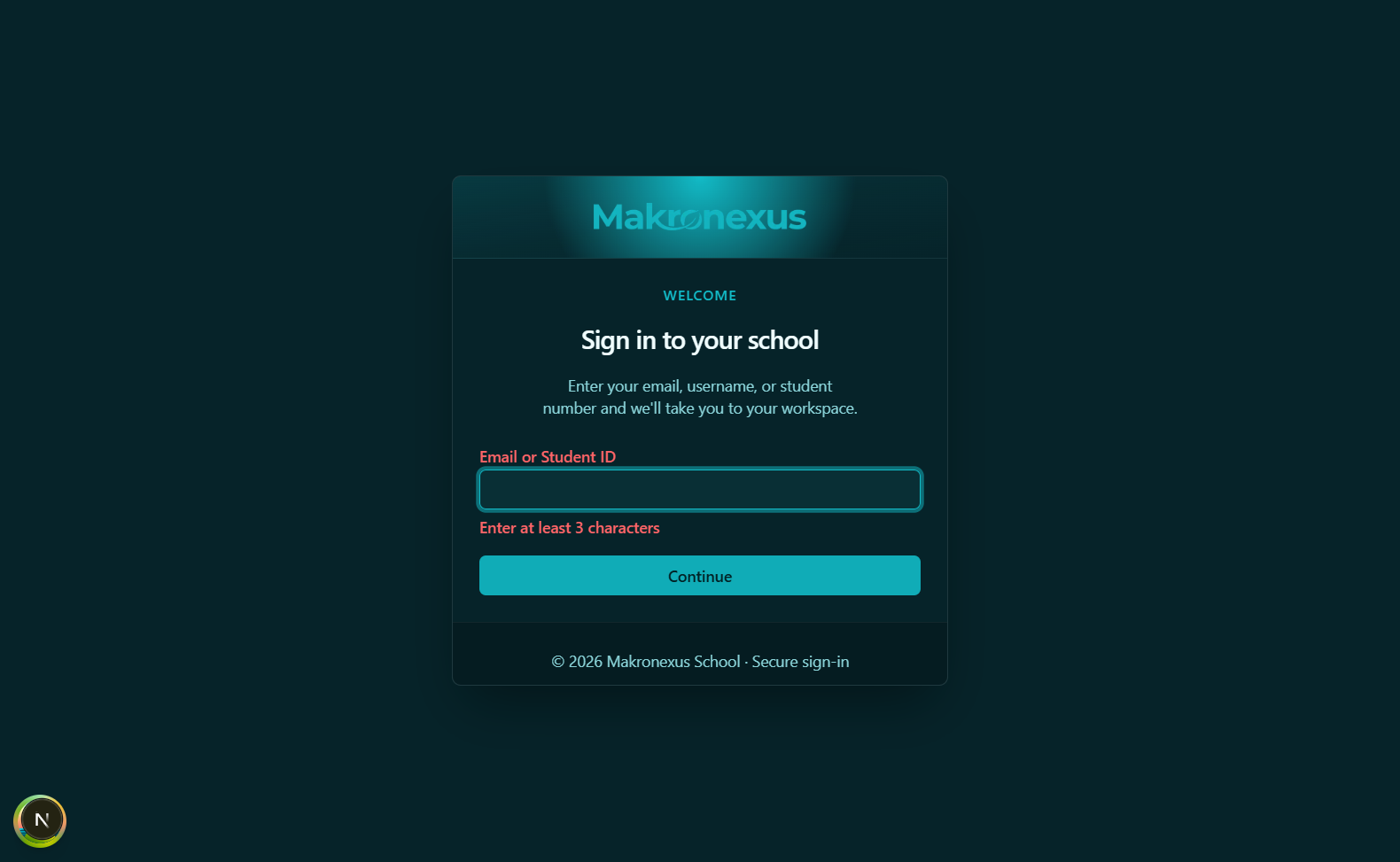
Actual inline validation state when the identity input is too short.
What happens next depends on your email:
- Single tenant
- Multiple tenants
- No tenants found
If your email belongs to only one organization, you'll proceed directly to the password screen with your organization pre-selected.
If your email belongs to multiple organizations (common for consultants, multi-school staff, or administrators):
- You'll see a list of organizations
- Select the organization you want to access
- Each organization is shown with its name
- Click the radio button next to your choice
If no organization is found for your email, you'll see an error message:
No accounts found
We couldn't find an organization for this email address.
Suggestions:
- Verify you're using your school-issued email address
- Check for typos in your email
- Contact your school administrator to confirm your account exists
- If you manage multiple trusts, try another tenant email
Step 3: Enter your password
- Confirm the Organization field shows the correct tenant
- Enter your password
- Optionally check Remember me to stay signed in longer
- Click Let me in
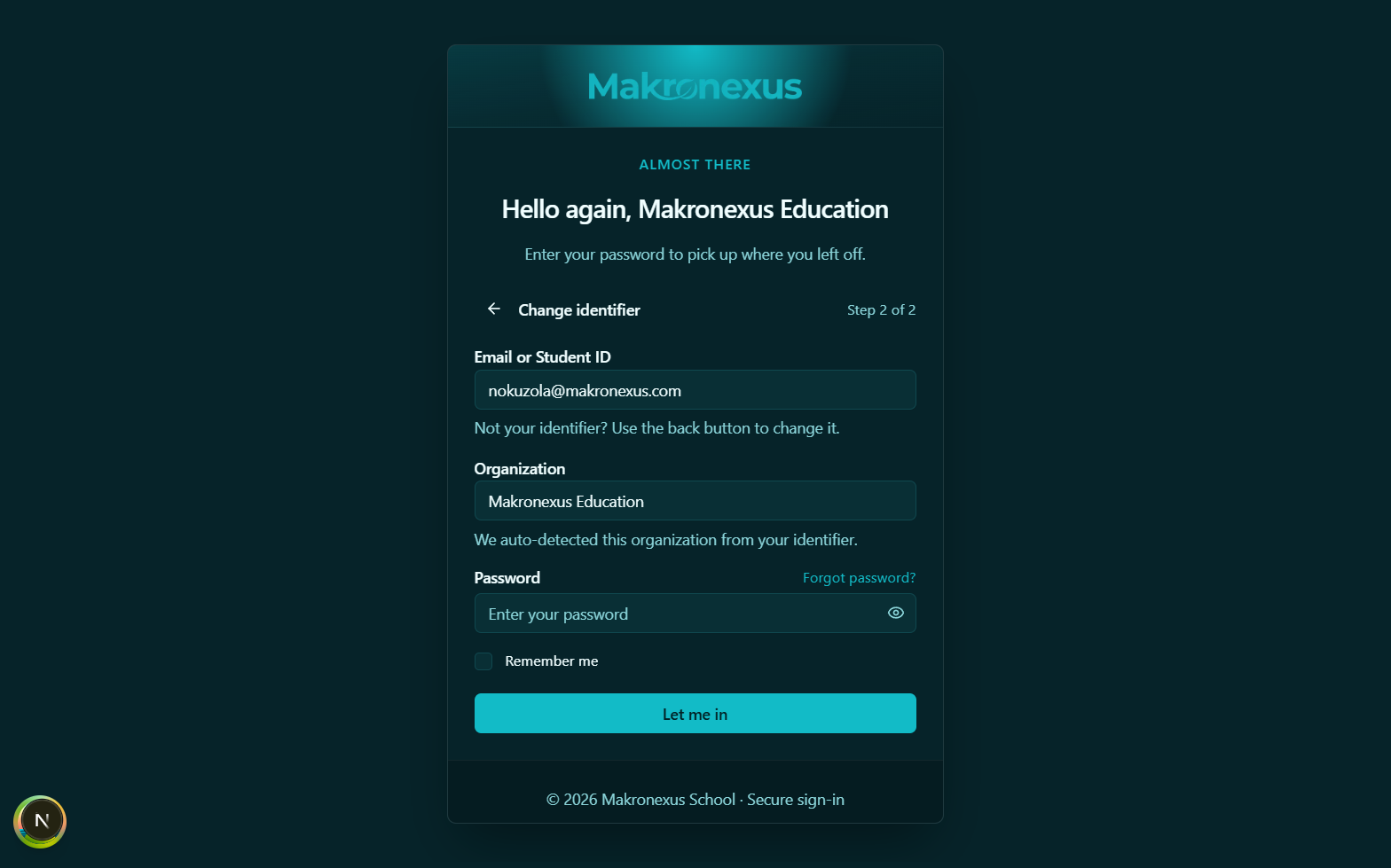
Password-entry step after tenant discovery with organization auto-detected.
Click Forgot password? to initiate the password reset flow. You'll receive an email with a reset link.
Step 4: MFA verification (if enabled)
If your organization enforces Multi-Factor Authentication:
- You'll see the MFA verification required screen
- Open your authenticator app (Google Authenticator, Microsoft Authenticator, Authy, etc.)
- Enter the 6-digit code displayed in your app
- Click Verify
The code refreshes every 30 seconds. If you enter an expired code, wait for the next one.
If you can't access your MFA device:
- Use a backup code if you saved one during MFA setup
- Contact your administrator to reset your MFA enrollment
- Navigate to Foundation -> Security -> MFA Devices once an admin resets your access
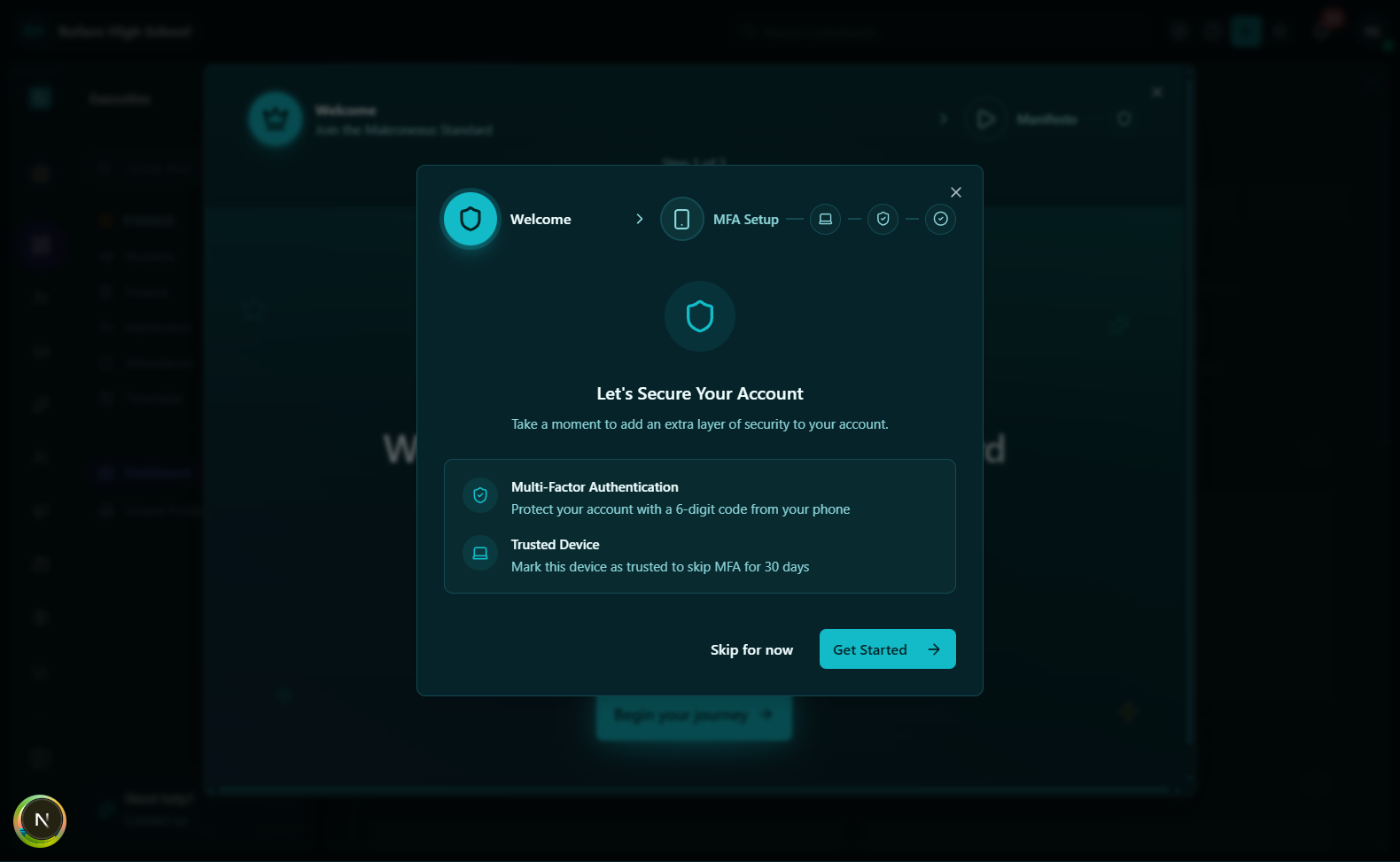
Step 5: Device trust (optional)
After successful authentication, you may see a prompt:
Trust this device?
- Trust device
- Skip
Click Trust this device to:
- Skip MFA on future logins from this device
- Device remains trusted for 30 days (configurable by your admin)
- Recommended for personal computers you use regularly
Click Skip or Not now to:
- Require MFA every time you sign in from this device
- Recommended for shared or public computers
- You can trust the device later from Security Settings
After signing in
Landing page
Workspace dashboard landing page after successful authentication.
After successful sign-in, you'll land on one of these screens based on your role:
| Role | Landing page |
|---|---|
| Oversight / Multi-School Exec | Enterprise Dashboard with cross-school analytics |
| School Exec / Staff | School Dashboard (requires school selection) |
| Teacher | My Classes or Dashboard |
| Student | My Learner Record |
| Guardian | My Children |
School selection
If you have access to multiple schools within a tenant:
- Look at the top navigation bar
- Click the school switcher dropdown
- Select the school you want to work with
- The sidebar updates to show school-specific modules
Modules like Attendance, Finance, Academics, and People require a school to be selected. If you see "Select a school" prompts, use the school switcher in the top bar.
Navigation structure
The main sidebar organizes features into sections:
| Section | Purpose |
|---|---|
| Executive | Dashboard, Overview, School Profile, Governance |
| Foundation | Schools, Identity & Access, Security, Audit, Messaging, Platform Billing |
| Admissions | Prospects, Applications, Decisions, Enrollments, Programs, Cycles |
| Academics | Curricula, Class Structure, Subjects, Assessments, Gradebooks, Exams, Reporting, Timetable |
| People | Students, Teachers, Staff, Guardians, Emergency Contacts, Import |
| Communications | WhatsApp, Announcements, Campaigns, Chats, Templates |
| Operations | Attendance, Events, Conduct, Assets, Library, Wellbeing |
| Finance | Contracts, Fees, Billing Runs, Invoices, Payments, Receipts, Scholarships |
| Analytics | Insights, Quality Assurance |
Troubleshooting
Common sign-in issues
"Invalid credentials" error
Possible causes:
- Password is incorrect
- Password was recently reset and you're using the old one
- Account is locked due to too many failed attempts
Solutions:
- Double-check your password (watch for Caps Lock)
- Use Forgot password? to reset
- Wait 15 minutes if locked out, or contact your administrator
"No accounts found" for my email
Possible causes:
- Email not registered in any tenant
- Using personal email instead of school email
- Account not yet created by administrator
Solutions:
- Verify the email address with your IT department
- Use your school-issued email
- Contact your administrator to create your account
MFA code not working
Possible causes:
- Code expired (they refresh every 30 seconds)
- Time on your device is out of sync
- Wrong authenticator app account
Solutions:
- Wait for a fresh code
- Sync your device's time with network time
- Verify you're using the code for Makronexus (check the account label in your authenticator)
- Contact your administrator if the issue persists
Stuck on "Signing in..." spinner
Possible causes:
- Network connectivity issues
- Browser extension interference
- Server maintenance
Solutions:
- Check your internet connection
- Try an incognito/private browser window
- Disable browser extensions temporarily
- Check with your IT department for service status
Can't see expected modules after signing in
Possible causes:
- No school selected (some modules require school context)
- Insufficient permissions for those modules
- Modules not enabled for your organization
Solutions:
- Select a school from the school switcher in the top bar
- Contact your administrator to review your role and permissions
- Ask your administrator if the module is enabled for your tenant
Rate limiting
If you see:
Too many sign-in attempts
Wait a few minutes before trying again. This protection prevents brute-force attacks on your account.
Security best practices
- Use a strong, unique password - Don't reuse passwords from other sites
- Enable MFA - Even if optional, MFA significantly increases account security
- Trust devices selectively - Only trust personal devices you control
- Sign out on shared computers - Always sign out when using shared or public devices
- Report suspicious activity - If you notice unfamiliar sessions in Security settings, report immediately
Related topics
- Initial school setup checklist - What to configure after your first login
- Security & Access overview - Understanding permissions and access control
- Sessions and devices - Managing your active sessions