Payments
The Payments module is where you record, view, and manage all money received from students and guardians. Every payment is linked to one or more invoices and generates a receipt automatically.
Navigation: Finance → Payments
Payments page
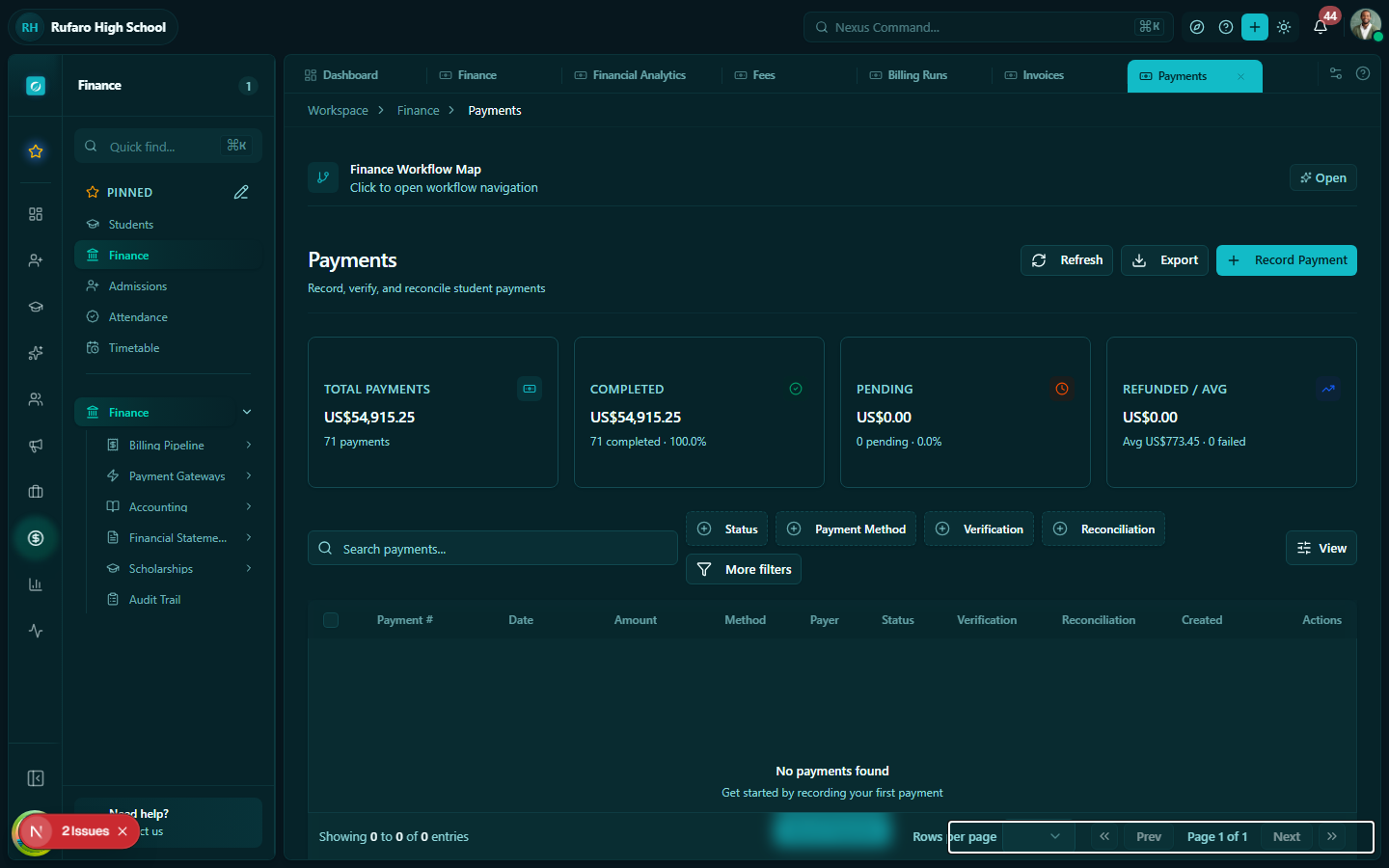
The Payments page shows all payment transactions across the school. Use the filter bar to narrow down by:
- Date range
- Payment method (Cash, Card, Mobile Money, Bank Transfer, etc.)
- Student name or ID
- Status (Completed, Voided)
- Grade / Class
Recording a payment
You can record a payment from two places:
- From the invoice — open the invoice and click Record payment (recommended, as it links the payment automatically)
- From the Payments page — click + New payment and select the student/invoice manually
Step-by-step (from Payments page)
- Click + New payment
- Search for the student by name or ID
- Select the invoice(s) to pay against — you can split a payment across multiple invoices
- Enter:
- Amount received
- Payment date
- Payment method (see payment methods below)
- Reference number — e.g., bank deposit slip, mobile money transaction ID
- Notes (optional)
- Click Record payment
A receipt is automatically generated. The linked invoice(s) are updated.
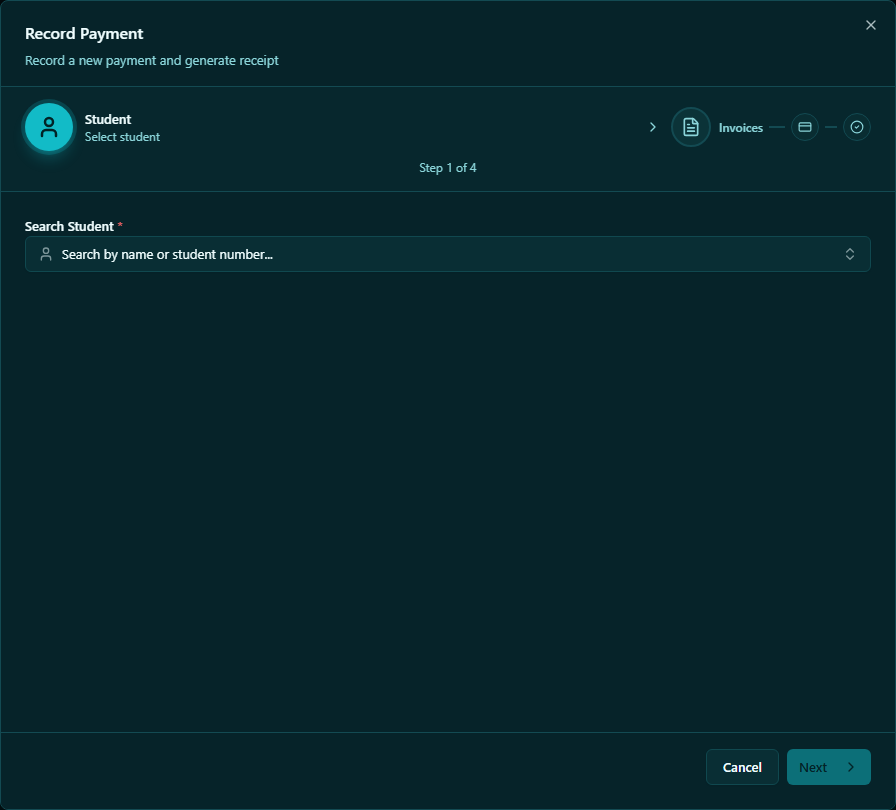
Payment methods
| Method | When to use |
|---|---|
| Cash | Parent pays directly at the school office |
| Cheque | Payment by cheque — enter cheque number in the reference field |
| Bank transfer | Parent paid via bank deposit, ZIPIT, or RTGS — enter bank reference |
| Card (Stripe) | Payment taken via the school's Stripe card terminal or payment link |
| PayNow | Payment via the PayNow gateway (Zimbabwe) |
| InnBucks | Wallet, QR, or USSD payment via InnBucks |
| EcoCash | Mobile money payment via EcoCash |
| OneMoney | Mobile money via NetOne OneMoney |
| Telecash | Mobile money via Telecel Telecash |
Payments made through online gateways (PayNow, InnBucks, EcoCash) are automatically recorded when the gateway confirms the transaction via webhook. You do not need to manually record these — they appear in the Payments list automatically.
Partial payments
If a parent can only pay part of an invoice:
- Enter the amount they are paying (less than the full invoice amount)
- The system creates a partial payment record
- The invoice status changes to Partially Paid
- The remaining balance stays on the invoice and is still due
Splitting a payment across multiple invoices
A parent may want to pay multiple invoices with one payment (e.g., Term 1 tuition + registration fee):
- Click + New payment
- Search for the student
- Select multiple invoices using the checkboxes
- Enter the total amount
- The system allocates the payment across the selected invoices proportionally, or you can manually set the split
Viewing payment details
Click any payment row to open its detail view:
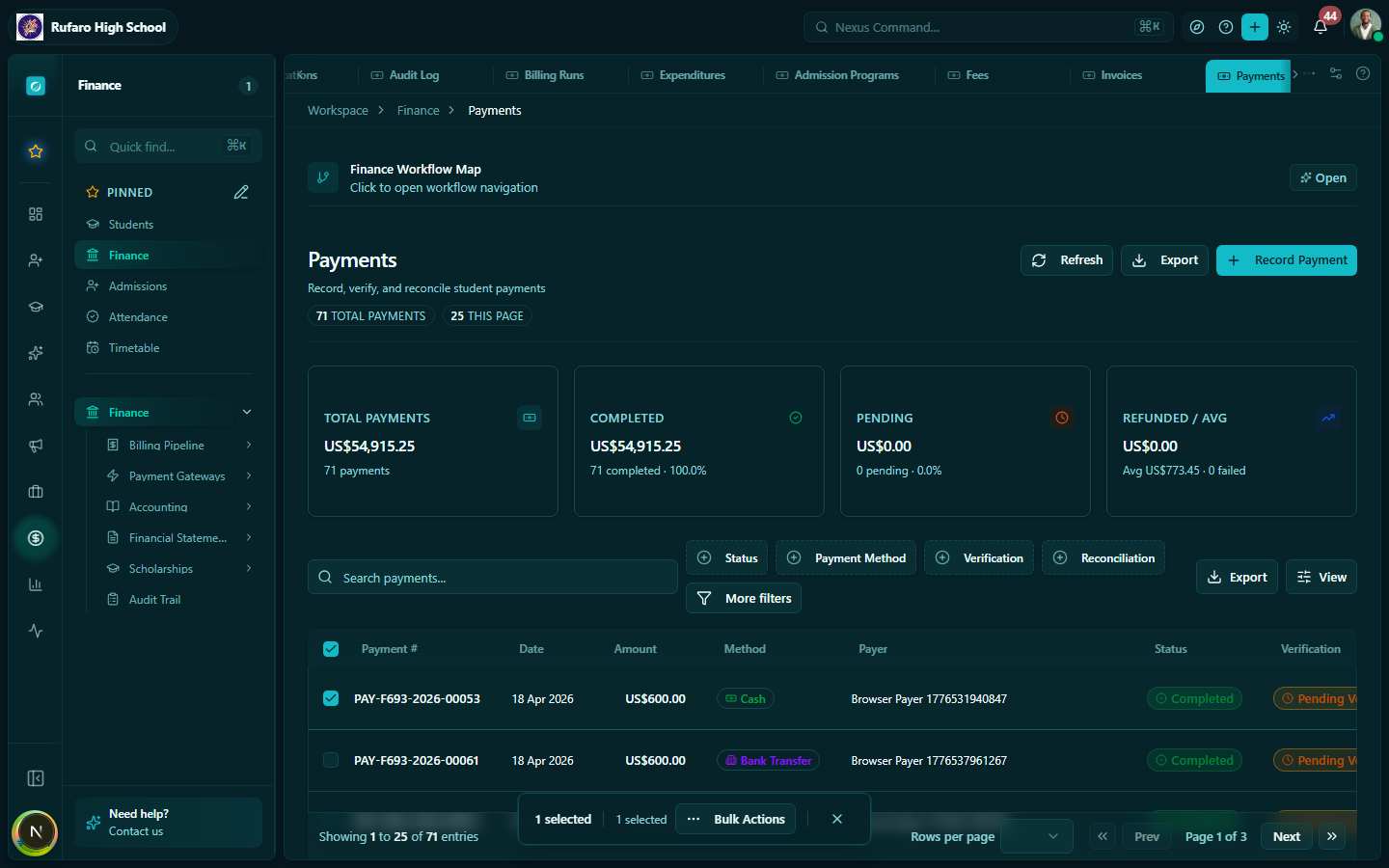
The detail view shows:
- Payment reference number
- Student and invoice links
- Payment breakdown (which invoices it covers)
- View receipt button — opens the associated receipt
- Created by / timestamp
Voiding a payment
If a payment was recorded in error (e.g., wrong amount, wrong student):
- Open the payment detail
- Click ⋮ menu → Void payment
- Enter a reason
- Confirm
Voiding a payment:
- Reverses the balance on the linked invoice(s)
- Cancels the associated receipt
- Cannot be undone — you must record the correct payment separately
Exporting payments
- Use the filter bar to narrow down the payments you want to export
- Click Export → CSV
- The file includes: reference number, student name, student ID, amount, payment method, date, linked invoice number, and status
This export is useful for daily cash-up reconciliation or submitting reports to the bursar.
Daily cash-up
At the end of each day, the finance officer should:
- Filter payments by today's date and method = Cash
- Verify the total matches the physical cash in the safe
- Export the list as a CSV for the daily cash register