Payment gateways
Payment gateways allow parents and guardians to pay school fees online — via card, mobile money, or bank transfer — without coming to the school office. When a gateway payment is confirmed, a payment record and receipt are automatically created in the system.
Navigation: Finance → Bank Settings (gateway hub)
Gateway overview
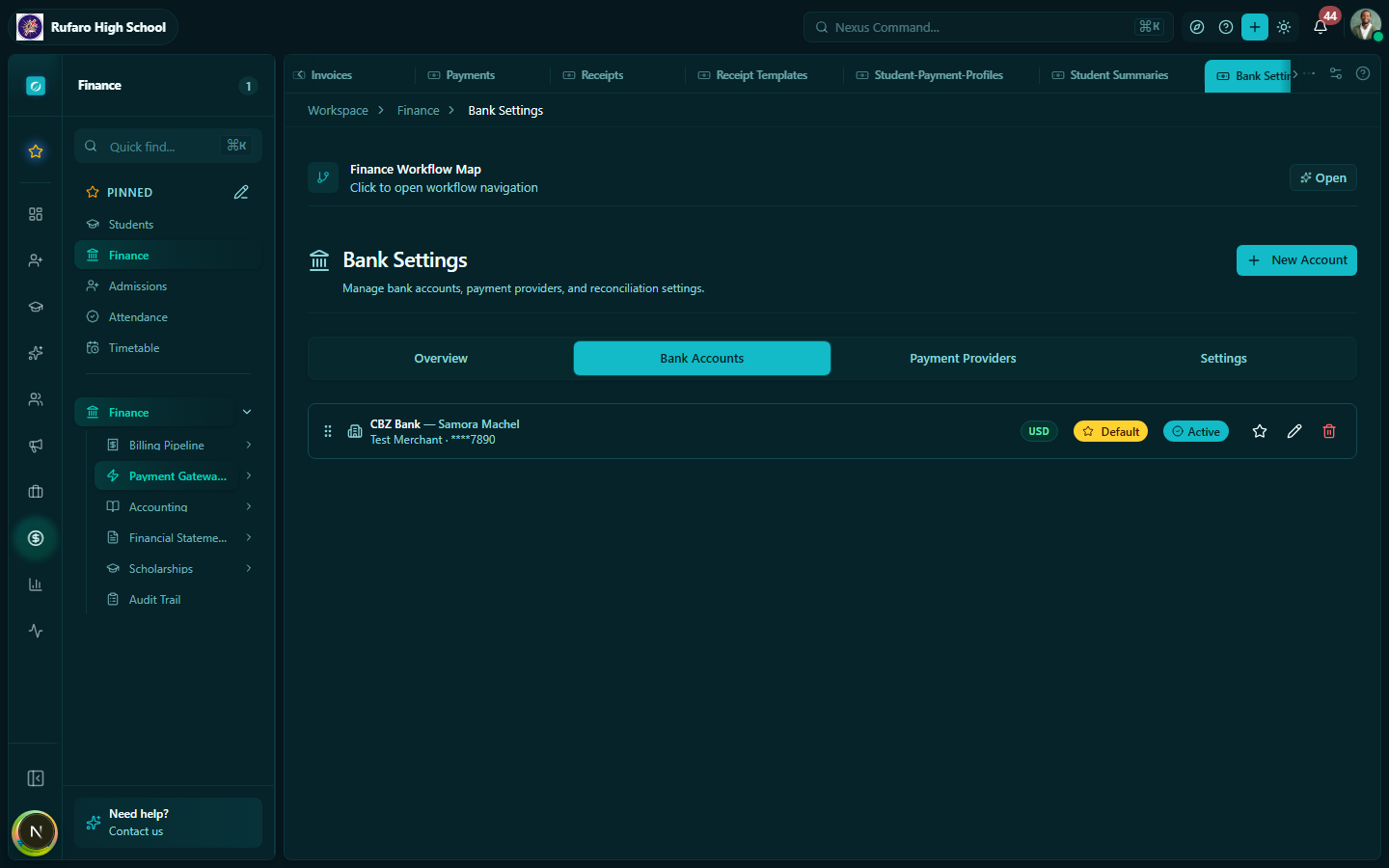
The system supports the following gateways:
| Gateway | Type | Common use |
|---|---|---|
| Stripe | Card payments | International cards, Visa, Mastercard, online checkout |
| PayNow | Zimbabwe payment platform | Web, USSD, and mobile money (EcoCash via PayNow) |
| InnBucks | Zimbabwe wallet | InnBucks wallet, QR code scan, USSD |
| EcoCash | Mobile money | Direct EcoCash push payments |
| OneMoney | Mobile money | NetOne OneMoney |
| Telecash | Mobile money | Telecel Telecash |
| Bank transfer | Manual / automated | ZIPIT, RTGS, EFT, and manual bank deposits |
Bank settings
Navigation: Finance → Bank Settings
Bank Settings is the central configuration hub for all payment providers.
Linking a bank account
Before enabling bank-transfer payments, add the school's bank account details:
- Click + Add bank account
- Enter:
- Bank name (e.g., CBZ, Stanbic, FBC, Ecobank)
- Account name
- Account number
- Branch / sort code
- Currency (USD or ZWL)
- Account type (Current, Savings)
- Click Save
These details appear on invoices and receipts so parents know where to deposit money.
Stripe
Navigation: Finance → Stripe
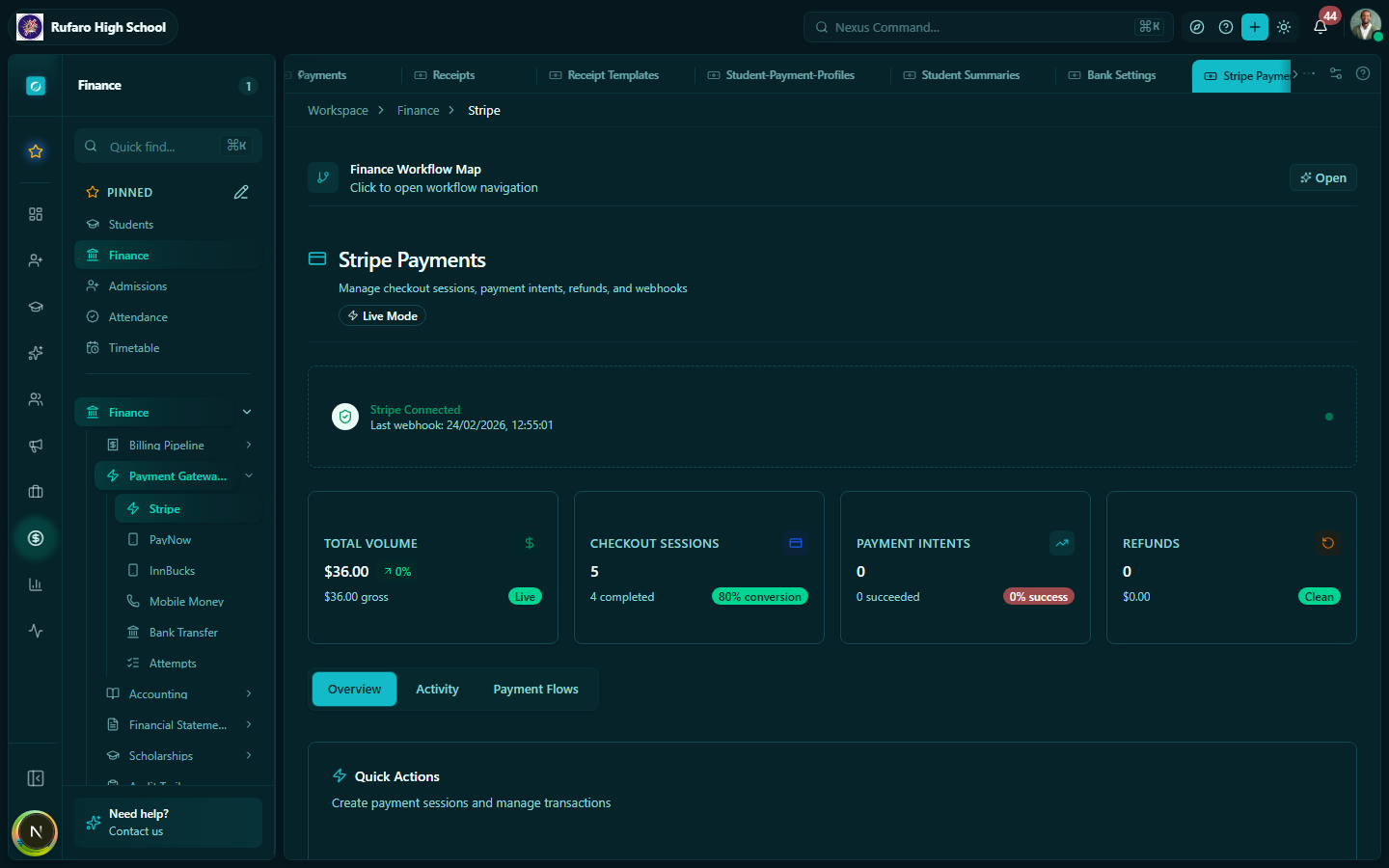
Stripe enables card payments from Visa and Mastercard. Parents can pay via a payment link or an embedded checkout on the parent portal.
Connecting Stripe
- Create a Stripe account at stripe.com if you don't have one
- In Stripe Dashboard, go to Developers → API keys
- Copy your Publishable key and Secret key
- Paste them into the Stripe configuration page in Makronexus
- Click Save & test connection
- Copy the Webhook endpoint URL shown in Makronexus
- Paste it into Stripe Dashboard under Developers → Webhooks
- Select the events:
payment_intent.succeeded,payment_intent.payment_failed - Click Activate
Toggle Test mode on while setting up to use Stripe's test card numbers without processing real payments. Switch to Live mode when ready to accept real payments.
PayNow
Navigation: Finance → PayNow
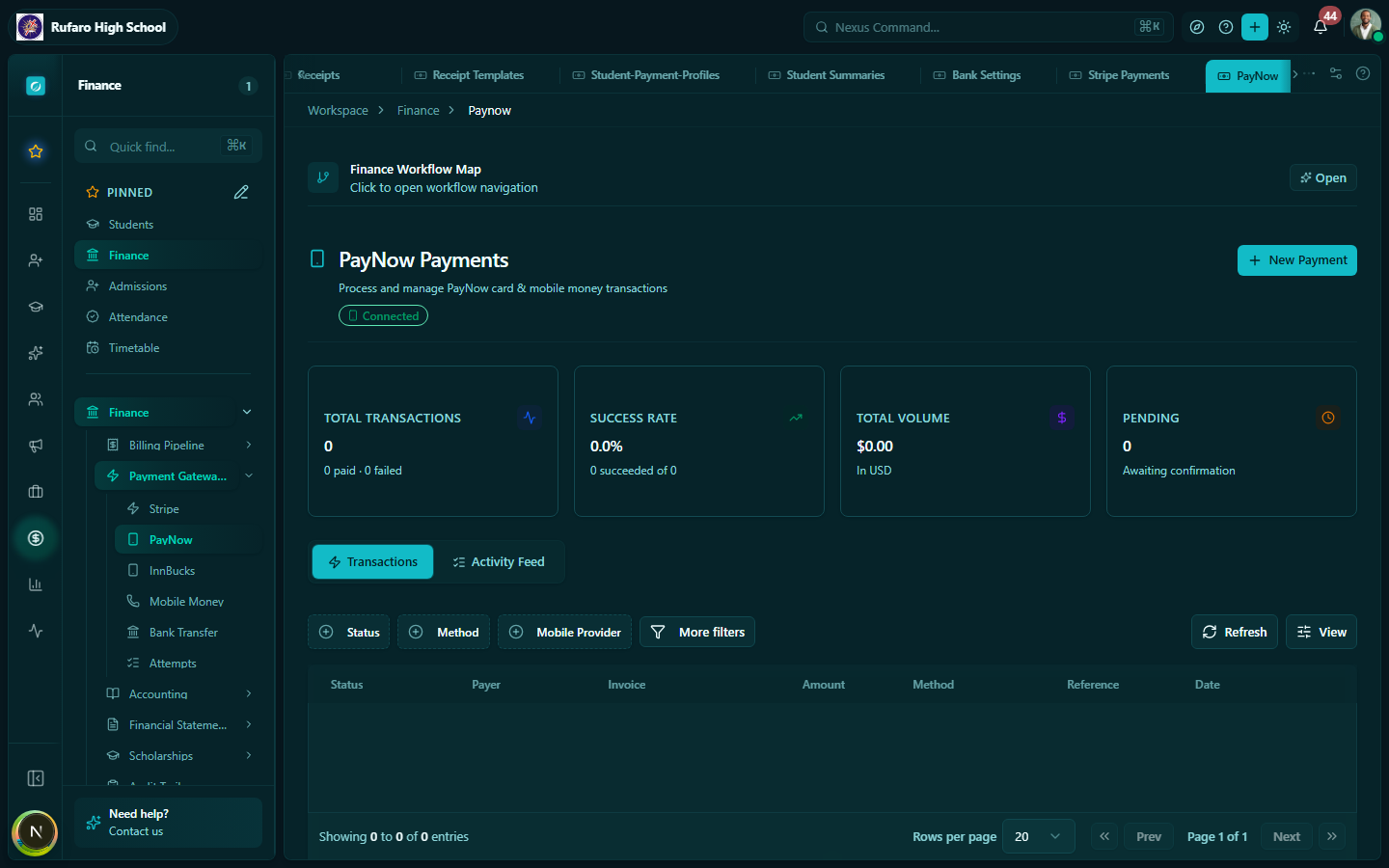
PayNow is Zimbabwe's most widely used payment platform. It supports web checkout, EcoCash (via PayNow), and USSD payments.
Connecting PayNow
- Register at paynow.co.zw
- In your PayNow merchant dashboard, create an integration to get your Integration ID and Integration Key
- In Makronexus, open Finance → PayNow
- Enter your Integration ID and Integration Key
- Set the Result URL to the webhook URL shown on the page (this is how PayNow notifies Makronexus of payment confirmations)
- Click Save & test
InnBucks
Navigation: Finance → InnBucks
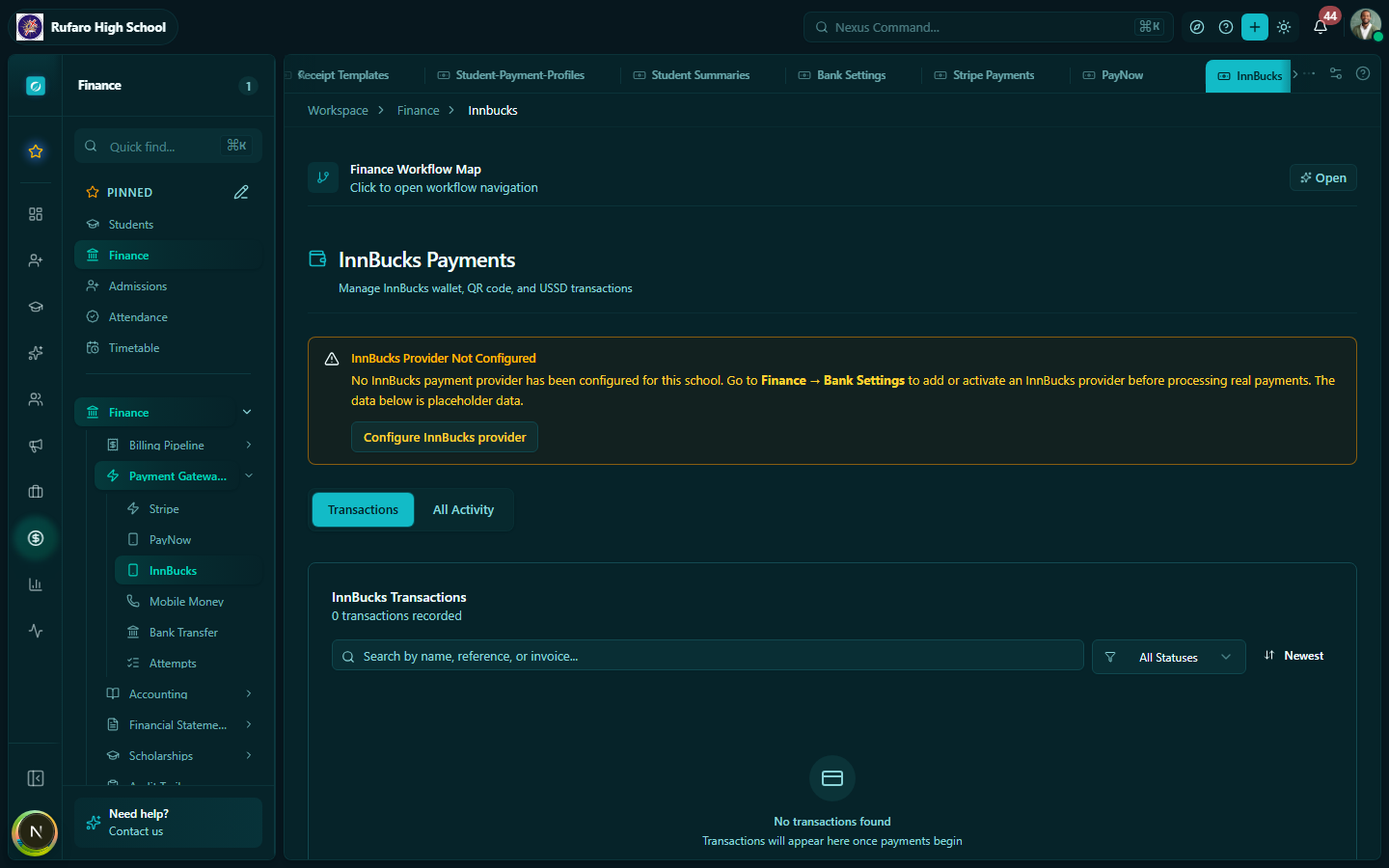
InnBucks supports wallet payments, QR code scans, and USSD-based payments.
Connecting InnBucks
- Contact InnBucks to register as a merchant
- Obtain your Merchant ID and API Key from the InnBucks merchant portal
- Enter these in Finance → InnBucks
- Paste the webhook URL into the InnBucks merchant portal
- Click Save & test
Mobile Money (EcoCash, OneMoney, Telecash)
Navigation: Finance → Mobile Money
The Mobile Money page aggregates direct integrations with Zimbabwe's mobile money networks.
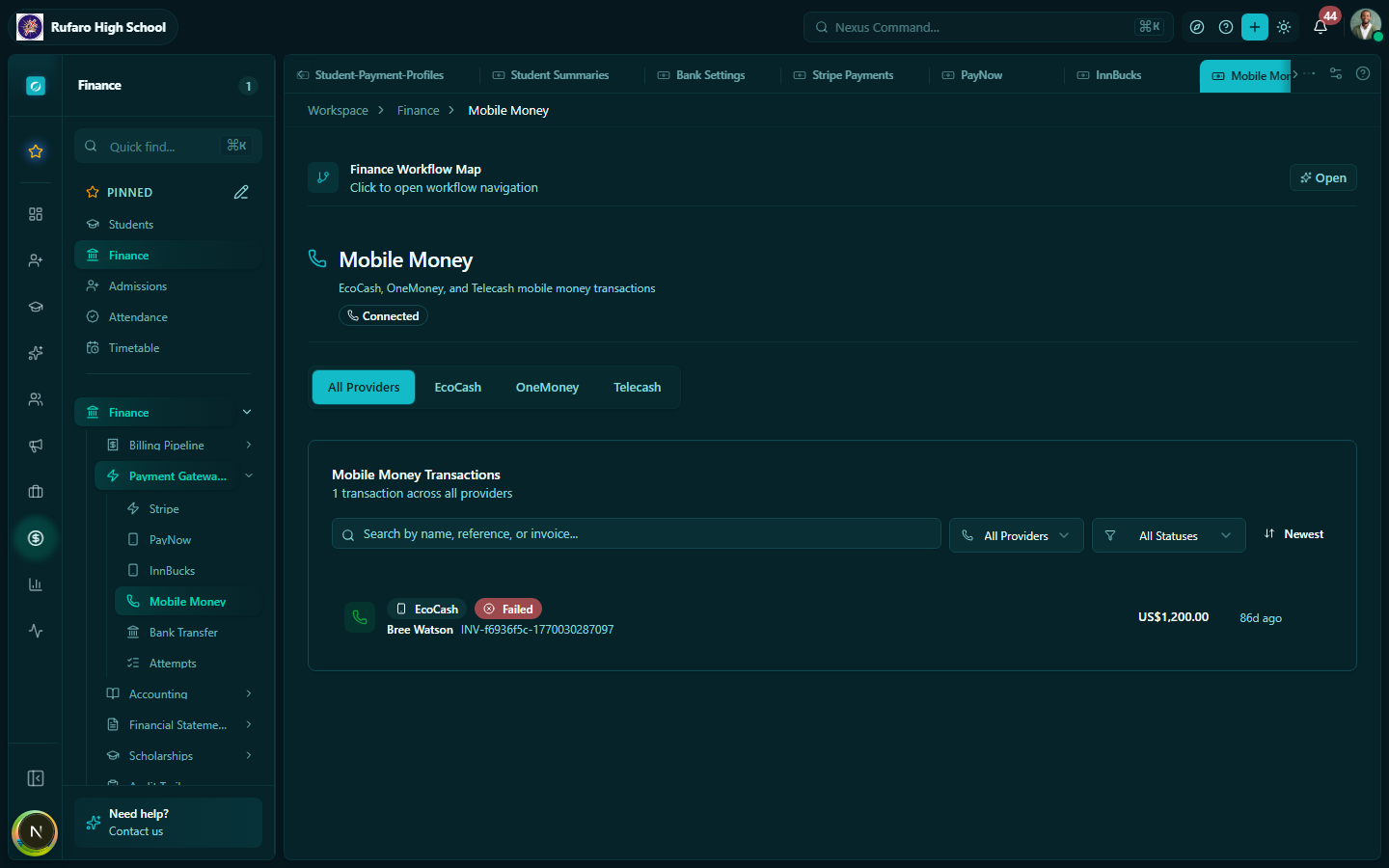
EcoCash
- Register as an EcoCash merchant (contact Econet Wireless)
- Obtain your Merchant number and API credentials
- Enter them in the EcoCash section
- Enable the toggle
OneMoney
- Register as a NetOne OneMoney merchant
- Enter Merchant ID and PIN in the OneMoney section
- Enable the toggle
Telecash
- Register as a Telecash merchant with Telecel Zimbabwe
- Enter credentials in the Telecash section
- Enable the toggle
Mobile money payments in Zimbabwe are push payments — the parent initiates the payment from their phone by entering the merchant number. The gateway then sends a confirmation to Makronexus via webhook, which automatically records the payment.
Bank Transfer
Navigation: Finance → Bank Transfer
The Bank Transfer module covers manual bank deposits, ZIPIT (interbank transfer), RTGS, and EFT payments.
How bank transfers work
Because bank transfers do not have an instant webhook, the workflow is semi-manual:
- A parent deposits money to the school's bank account (using the student's name or invoice number as reference)
- The bank statement is imported into Makronexus (see Accounting → Bank Statements)
- The system attempts to auto-match the deposit to an invoice using the reference field
- Unmatched transfers appear in the Bank Transfer page for manual matching
- The finance officer confirms the match → payment is recorded automatically
Bank webhooks
Navigation: Finance → Bank Webhooks (Settings)
Bank webhooks are used by some local banks to push real-time payment notifications directly to Makronexus. Configure the webhook endpoint provided by Makronexus in your bank's online banking portal.
Testing payment gateways
Before going live, always test:
- Enable test / sandbox mode on the gateway
- Use the gateway's test credentials and test payment numbers
- Complete a test payment end-to-end
- Verify the payment appears in Finance → Payments with the correct amount and student reference
- Switch to live mode only after a successful test
Troubleshooting gateway payments
| Problem | Likely cause | Action |
|---|---|---|
| Payment confirmed by gateway but not in Makronexus | Webhook not configured | Check webhook URL in gateway dashboard |
| Duplicate payment recorded | Webhook fired twice | Check Payment Attempts for duplicates |
| Wrong student linked | Parent used wrong reference | Manually re-link the payment to the correct invoice |
| Payment showing as failed | Insufficient funds / declined | Parent must retry; check Payment Attempts for error code |