Receipts & receipt templates
A receipt is proof of payment issued to a student or guardian after a payment is recorded. Receipts can be printed, emailed, or sent via SMS link. Receipt templates let you customise the layout and branding of printed receipts.
Receipts
Navigation: Finance → Receipts
Receipts page
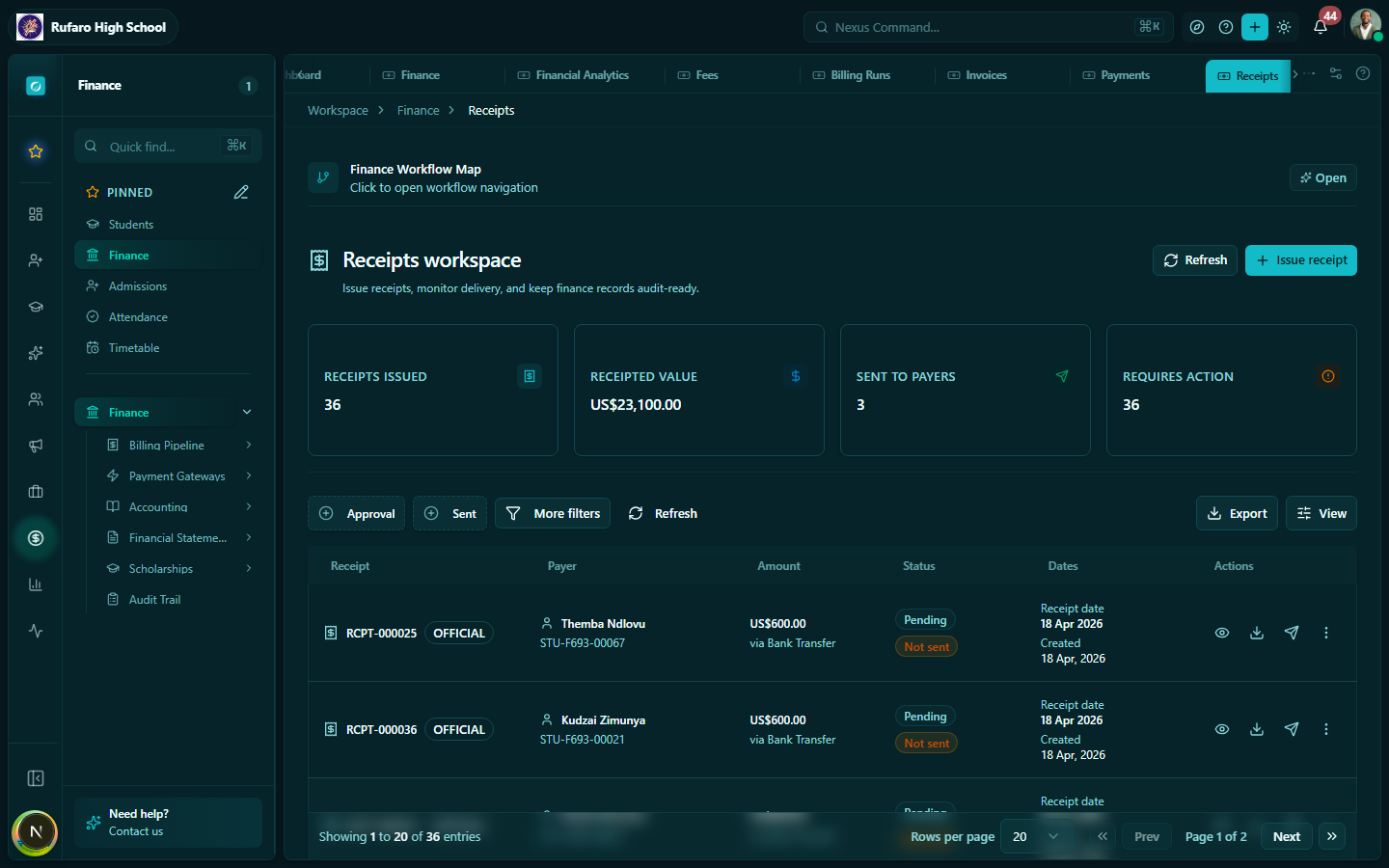
The Receipts page shows all receipts issued by the school. Each receipt corresponds to a payment record.
Filtering receipts
| Filter | Options |
|---|---|
| Date range | Filter by receipt issue date |
| Status | Active, Cancelled |
| Payment method | Cash, Card, Mobile Money, Bank Transfer |
| Student | Search by name or ID |
| Grade / Class | Filter by class |
Viewing a receipt
Click any receipt row to open the full receipt view:
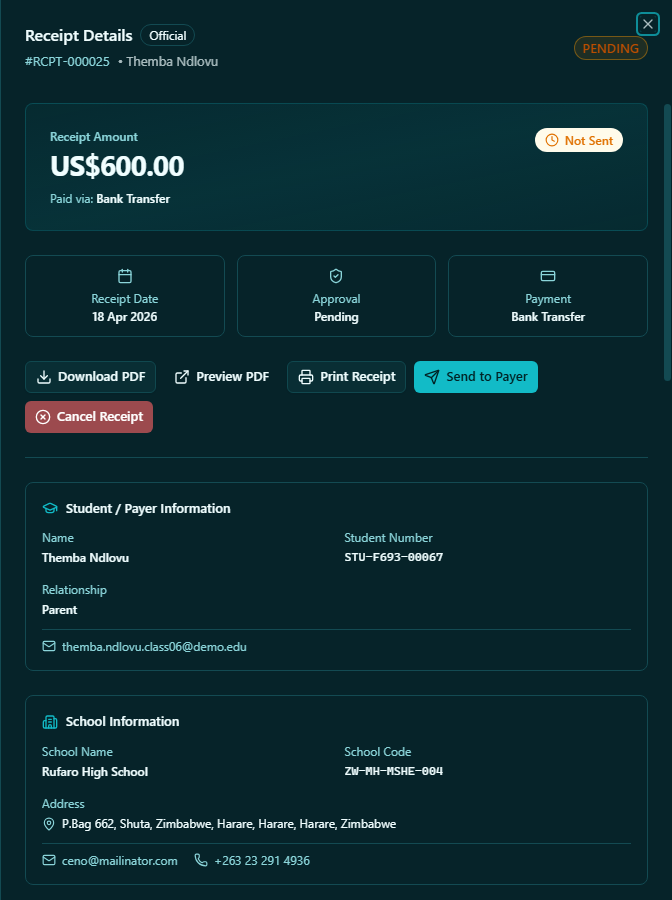
The receipt shows:
- Receipt number — unique reference (e.g., RCP-2026-004567)
- School name and logo
- Student name and ID
- Invoice reference the receipt is for
- Payment details — amount, method, date, reference
- Received by — staff member who recorded the payment
Printing a receipt
- Open the receipt
- Click Print or Download PDF
- The receipt opens in print view using the active receipt template
Emailing a receipt
- Open the receipt
- Click Send via email
- Confirm the guardian's email address
- Click Send
The email includes a PDF attachment of the receipt.
Sending receipt via SMS
- Open the receipt
- Click Send via SMS
- The system sends a short message with a secure link to view the receipt online
SMS delivery requires the school to have an active SMS gateway configuration.
Issuing a receipt manually
In most cases receipts are created automatically when you record a payment. If you need to issue a receipt manually (e.g., for an offline gateway payment that was not auto-receipted):
- Click + New receipt
- Search for the payment or student
- Select the linked payment
- Click Issue receipt
Cancelling a receipt
A receipt should only be cancelled if the underlying payment is voided (reversed).
- Open the receipt
- Click ⋮ menu → Cancel receipt
- Enter a reason
- Confirm
Cancelling a receipt does not cancel the underlying payment. Void the payment first, then cancel the receipt if needed. The system may do this automatically when you void a payment.
Receipt templates
Navigation: Finance → Receipt Templates
Receipt templates control the visual design of your printed and PDF receipts — school branding, layout, column arrangement, and footer text.
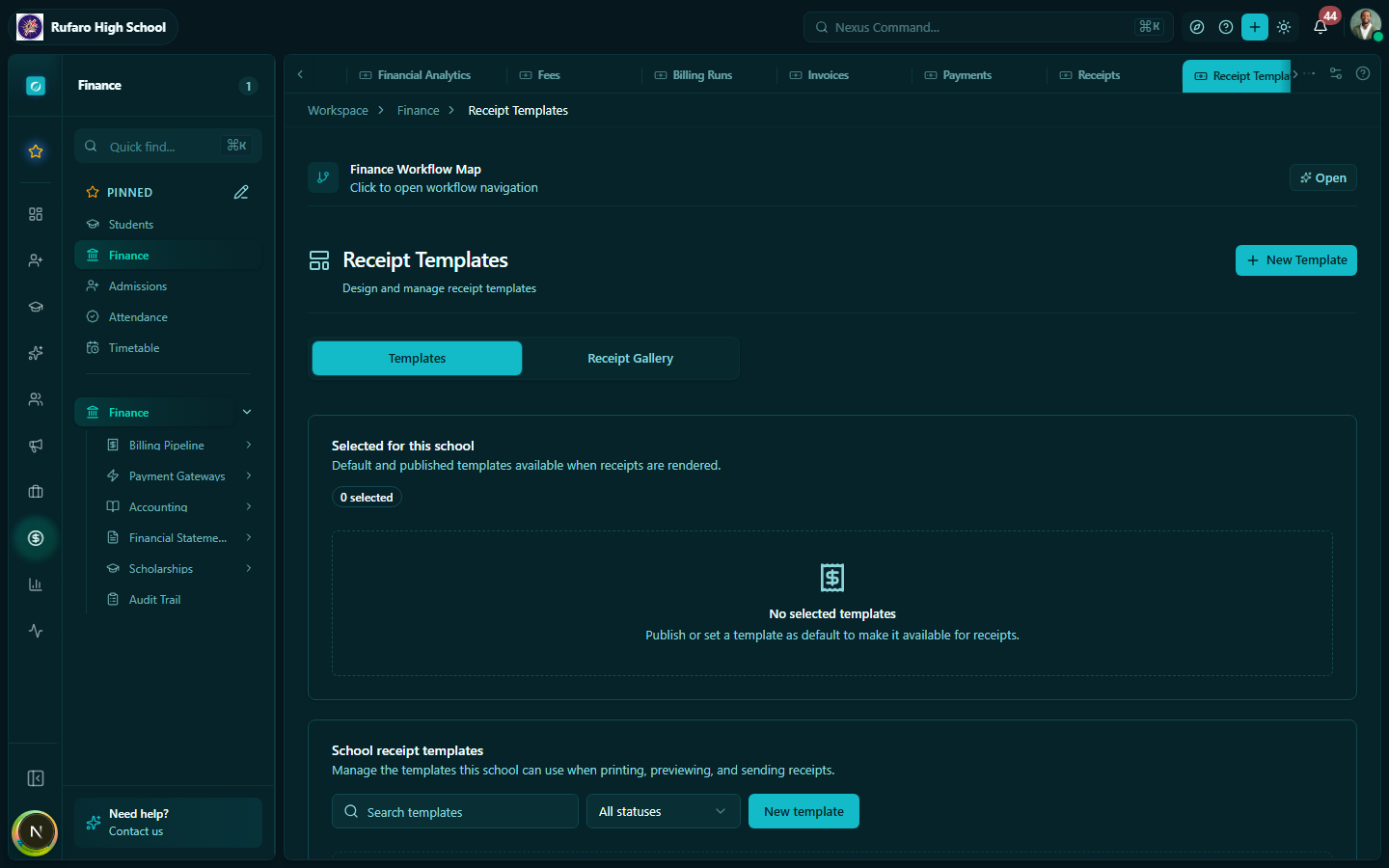
Default template
The Default template is used for all receipts unless you assign a specific template to a fee type. You can have only one default template at a time.
Creating a receipt template
- Click + New template
- Enter a template name
- Use the template editor to configure:
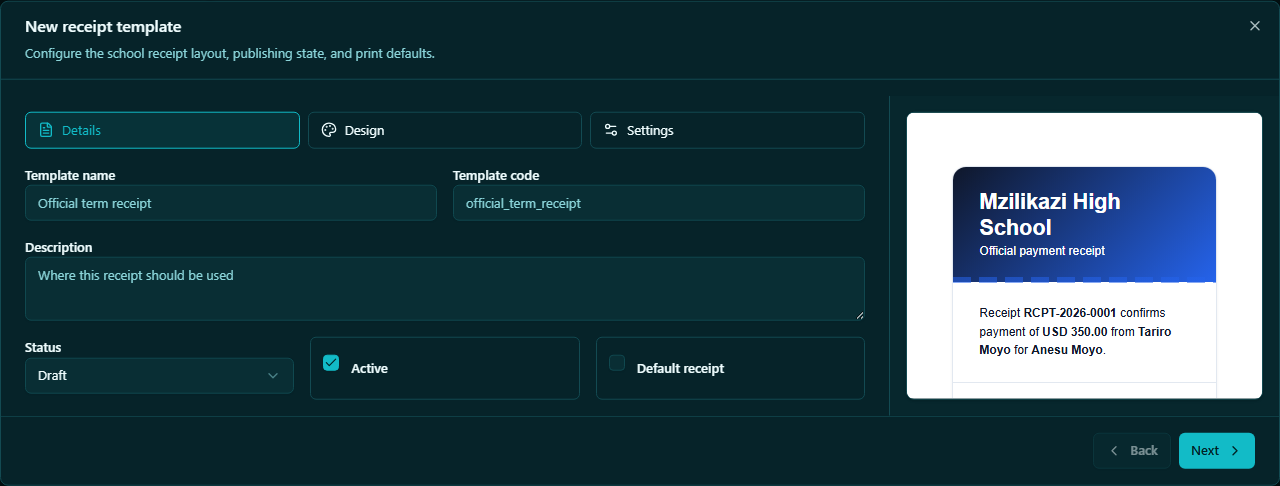
| Section | Options |
|---|---|
| Header | School name, logo, address, phone, email |
| Receipt fields | Show/hide: receipt number, date, student ID, class, invoice number, payment method, reference |
| Payment table | Columns to show in the payment details table |
| Totals section | Show balance before payment, amount paid, remaining balance |
| Footer | Custom footer text (e.g., "Thank you for your payment", bank details) |
| Stamp area | Reserve space for an official school stamp |
| Paper size | A4, A5, or thermal receipt (80mm) |
| Font | Choose from available fonts |
- Click Preview to see how the receipt will look
- Click Save
Setting a template as default
- Open the template
- Click Set as default
- Confirm
Editing a template
- Click on the template name or ⋮ menu → Edit
- Make your changes
- Click Save
Editing a template does not change already-issued receipts — only future receipts will use the updated design.
Previewing a template
Click Preview on any template row to see a sample receipt using dummy data in the selected layout.
Tips for receipt management
- Set up your receipt template before billing season so every receipt issued during term carries your school's branding.
- Use the thermal (80mm) template if your school uses a receipt printer at the front desk.
- Email receipts to guardians immediately after recording payment to reduce follow-up queries.
- Number receipts carefully — never cancel and re-issue a receipt for the same payment without voiding the original payment first.