Invoices
An invoice is a formal request for payment sent to a student (or their guardian). Invoices are generated automatically via billing runs or manually for individual students. Each invoice tracks the fee owed, due date, and payment history.
Navigation: Finance → Invoices
Invoice lifecycle
| Status | Meaning |
|---|---|
| Draft | Created but not yet sent to the student/guardian |
| Issued | Sent and awaiting full payment |
| Partially paid | Some payment received; balance remaining |
| Paid | Fully settled |
| Overdue | Past the due date with outstanding balance |
| Cancelled | Voided; a credit note may have been issued |
Invoices page
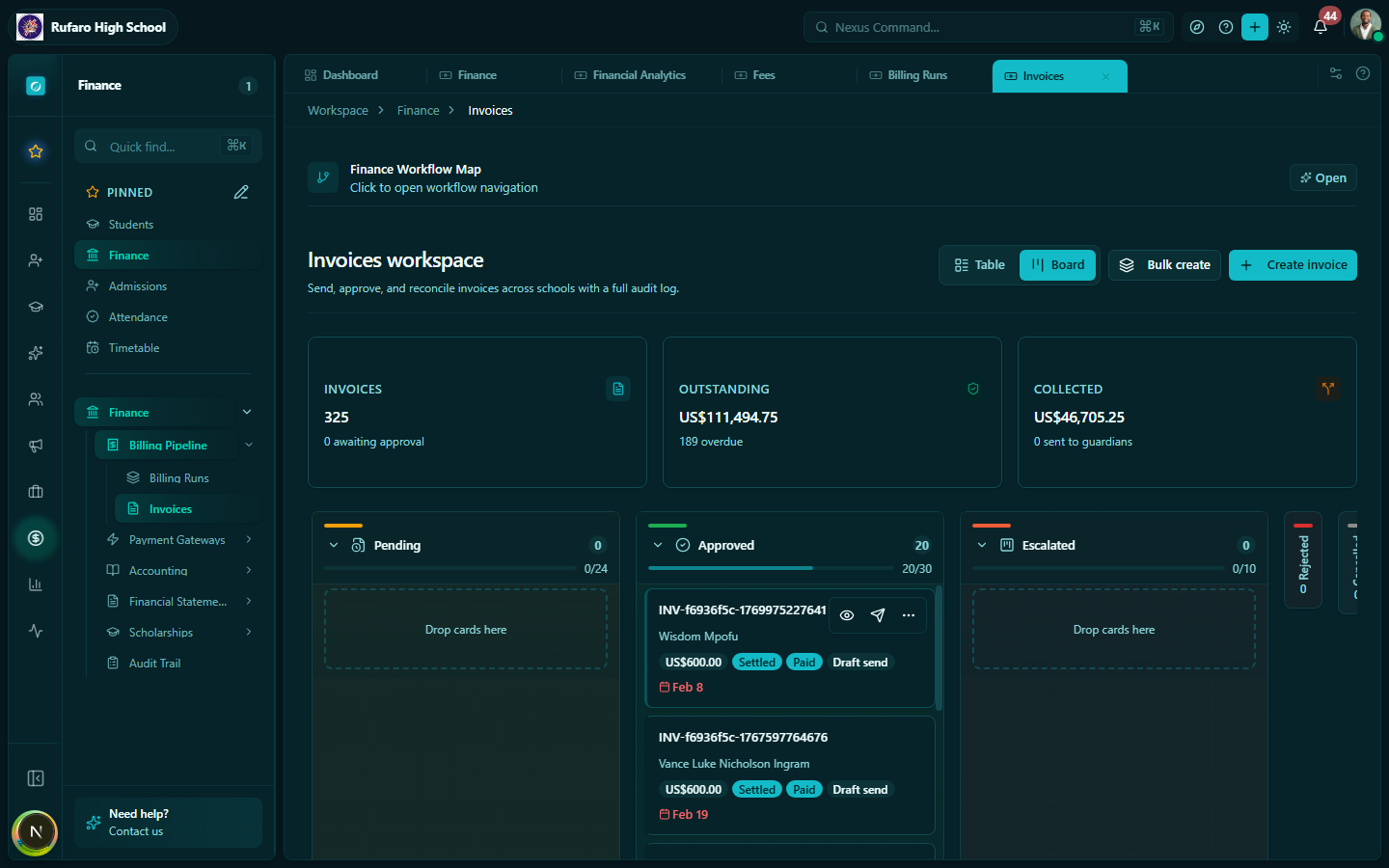
Filtering invoices
Use the filter bar to narrow down the list:
- Status — All, Issued, Overdue, Paid, Cancelled
- Term — filter by academic term
- Grade / Class — filter to a specific grade or class division
- Fee type — filter by fee category
- Date range — invoice date or due date range
- Student — search by student name or ID
Viewing an invoice
Click any row to open the invoice detail view.
The detail view shows:
- Invoice number — unique reference (e.g., INV-2026-001234)
- Student — name, class, student ID
- Fee details — fee name, amount, due date
- Payment history — list of all payments received against this invoice, with dates and methods
- Balance — remaining amount owed
- Status badge — current invoice status
Sending an invoice
- Open the invoice detail
- Click Send invoice
- Choose delivery method:
- Email — sent to the guardian's email address on file
- SMS — sent as a link to the guardian's mobile number
- Print — opens a print-ready PDF view
- Click Send
Sending an invoice changes its status from Draft to Issued.
Recording a payment manually
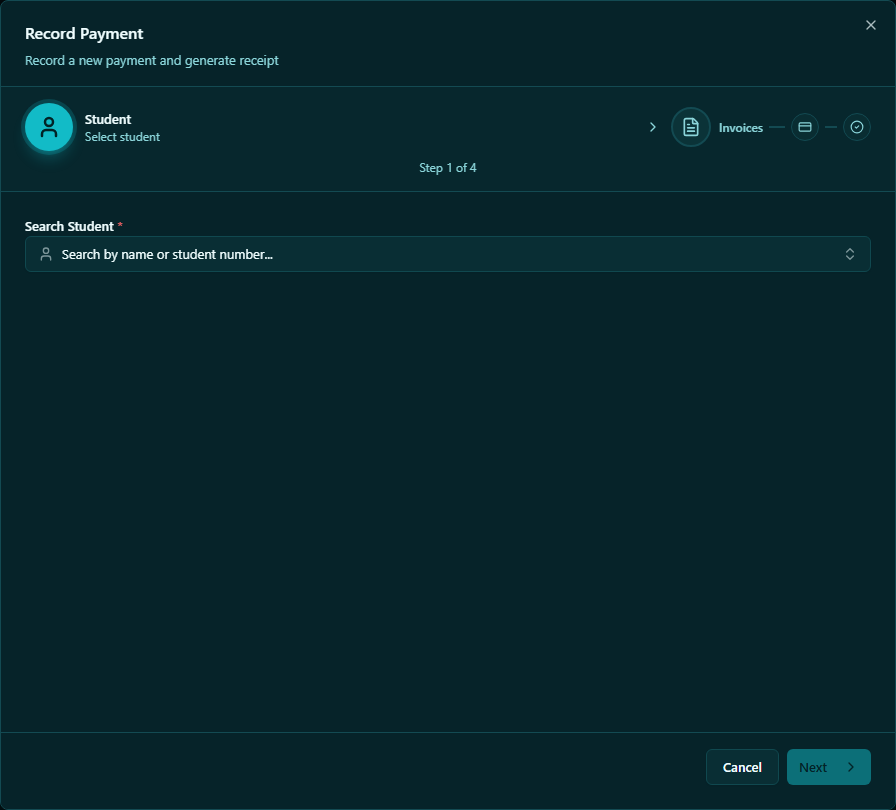
If a parent pays in cash or via bank deposit, record the payment directly from the invoice:
- Open the invoice
- Click Record payment
- Enter:
- Amount received
- Payment date
- Payment method (Cash, Cheque, Bank Transfer, etc.)
- Reference (e.g., deposit slip number)
- Click Save payment
A receipt is automatically generated and the invoice balance is updated.
Creating a manual invoice
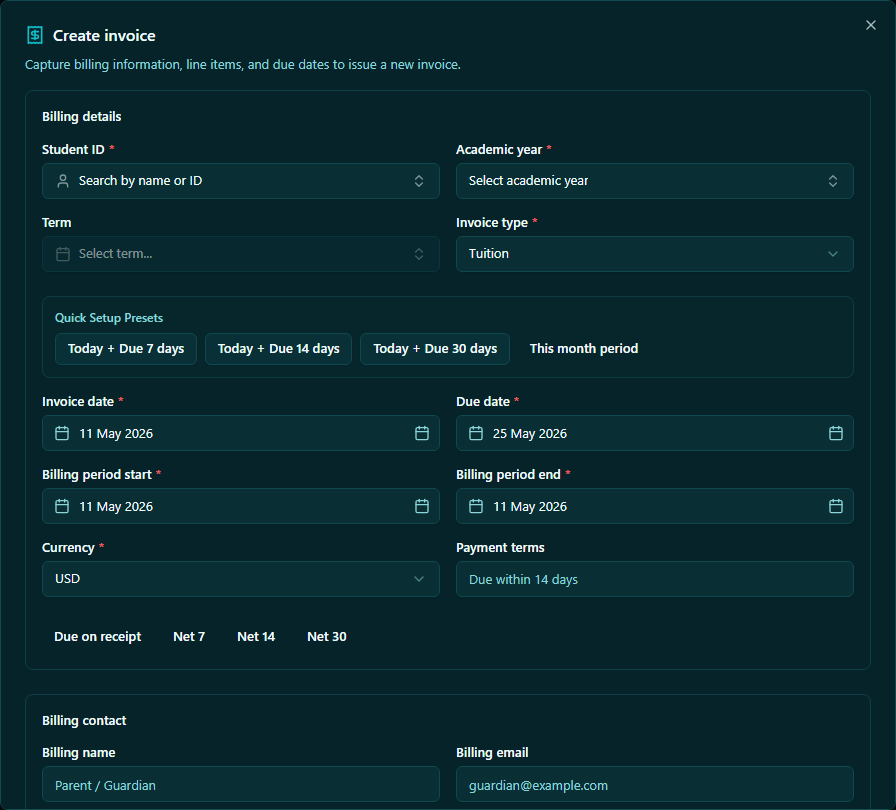
To invoice a single student outside a billing run:
- Click + New invoice
- Select:
- Student
- Academic year and term
- Fee structure
- Invoice date and due date
- Click Create invoice
The invoice is created in Draft status — remember to send it.
Cancelling an invoice
- Open the invoice
- Click ⋮ menu → Cancel invoice
- Provide a cancellation reason
- Confirm
- Cancelling an invoice with payments will automatically generate a credit note for the amount already paid.
- Cancelled invoices cannot be reinstated — create a new invoice if needed.
Credit notes
A credit note is automatically created when:
- A paid or partially-paid invoice is cancelled
- A fee adjustment results in a negative balance
Credit notes can be applied against future invoices for the same student.
Bulk operations
Select multiple invoices using the checkboxes to perform bulk actions:
| Action | Description |
|---|---|
| Send selected | Sends all selected invoices to guardians |
| Mark as issued | Changes status from Draft → Issued |
| Export to CSV | Downloads the selected invoices as a spreadsheet |
| Cancel selected | Bulk cancellation (use carefully) |
Overdue invoices
The system automatically marks invoices as Overdue when the due date passes and the balance is not zero. To manage overdue accounts:
- Filter invoices by status = Overdue
- Sort by Balance (highest first) to prioritise largest debts
- Use the Communications module to send payment reminders in bulk
Invoice numbering
Invoice numbers are assigned automatically in sequence. The format is INV-YYYY-NNNNNN. You cannot manually set invoice numbers.
Printing and PDF export
- Single invoice — open the invoice → Print / Download PDF
- Bulk export — select multiple invoices → Export → choose PDF or CSV