Scholarships
The Scholarships module lets you define scholarship programs, award them to individual students, and manage student applications. Scholarship awards are linked directly to the student's invoice, reducing the amount they owe.
Navigation: Finance → Scholarships
Scholarship workflow
- Create a scholarship program — define eligibility criteria, funding amount, and the number of awards available
- Students apply — either through the system or manually entered by staff
- Review applications — approve or reject based on criteria
- Award is created — the approved amount is applied as a fee adjustment against the student's invoice
Scholarship programs
Navigation: Finance → Scholarships → Programs
A scholarship program is the template that defines the scholarship offering.
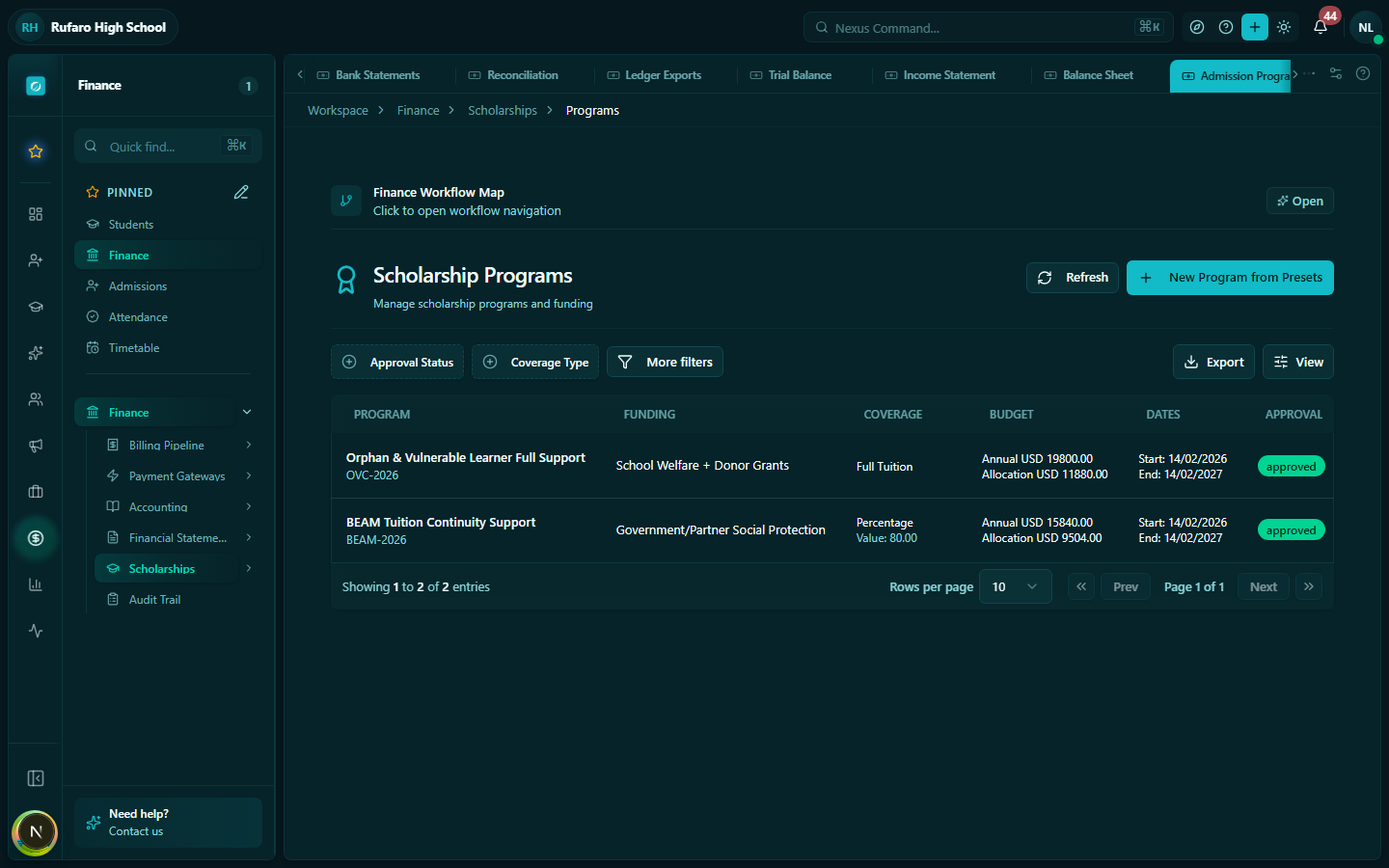
Creating a program
- Click + New program
- Fill in:
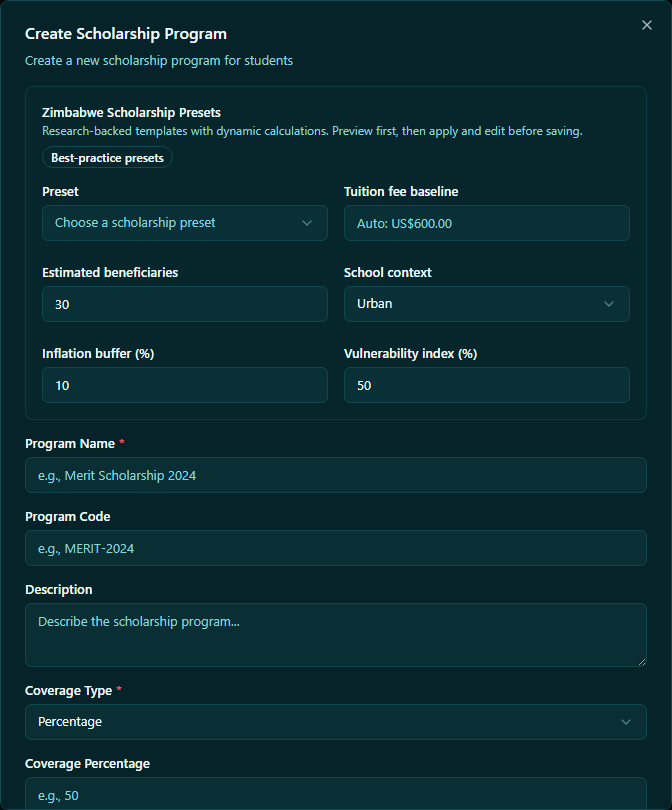
| Field | Description |
|---|---|
| Program name | e.g., "Head's Academic Excellence Award", "Government Bursary Scheme" |
| Description | What the scholarship is for and who is eligible |
| Funding source | Internal (school funds), Government, Donor, NGO |
| Award amount | Fixed amount (e.g., $300) or percentage of tuition (e.g., 50%) |
| Award type | Full scholarship, Partial bursary, Exam fee waiver |
| Applies to fees | Which fee(s) the award covers (Tuition, Exam fees, etc.) |
| Available awards | Maximum number of students who can receive this award |
| Eligibility criteria | Free text description (e.g., "Academic average above 85%, financial need demonstrated") |
| Academic year | The year this program is active |
| Application deadline | Last date to apply |
| Status | Draft, Active, Closed |
- Click Save program
Editing a program
- Click on the program name or ⋮ menu → Edit
- Make changes
- Click Save
Changing the award amount on a program does not retroactively change awards already granted. New awards created after the change will use the updated amount.
Scholarship awards
Navigation: Finance → Scholarships → Awards
An award is the actual scholarship granted to a specific student. It links a student to a program and specifies the exact amount to be applied.
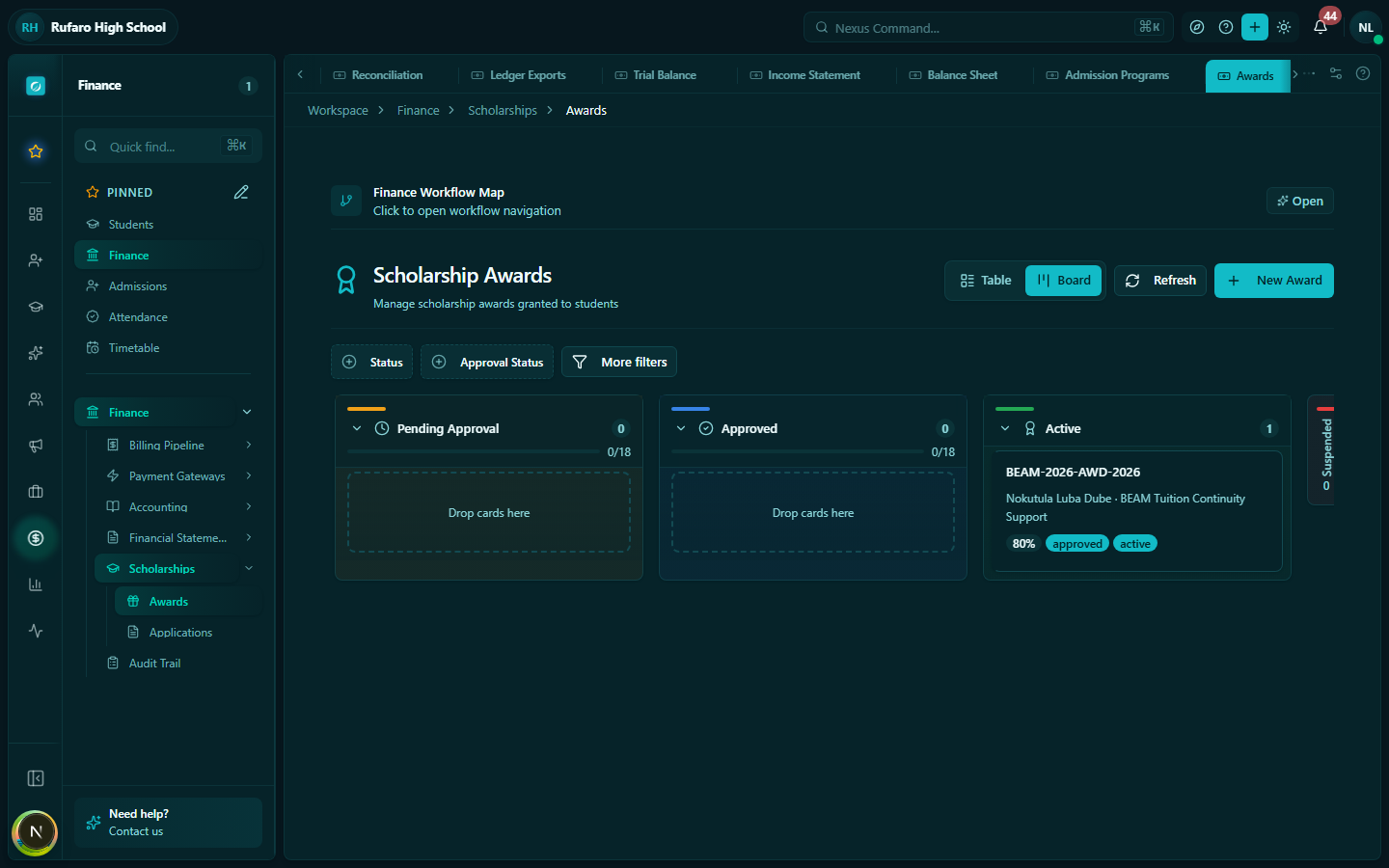
Granting an award manually
- Click + New award
- Select:
- Student — the recipient
- Program — which scholarship program this is from
- Award amount — pre-filled from the program but can be adjusted per student
- Academic year and term — when the award applies
- Fee to offset — the invoice or fee this award reduces
- Click Grant award
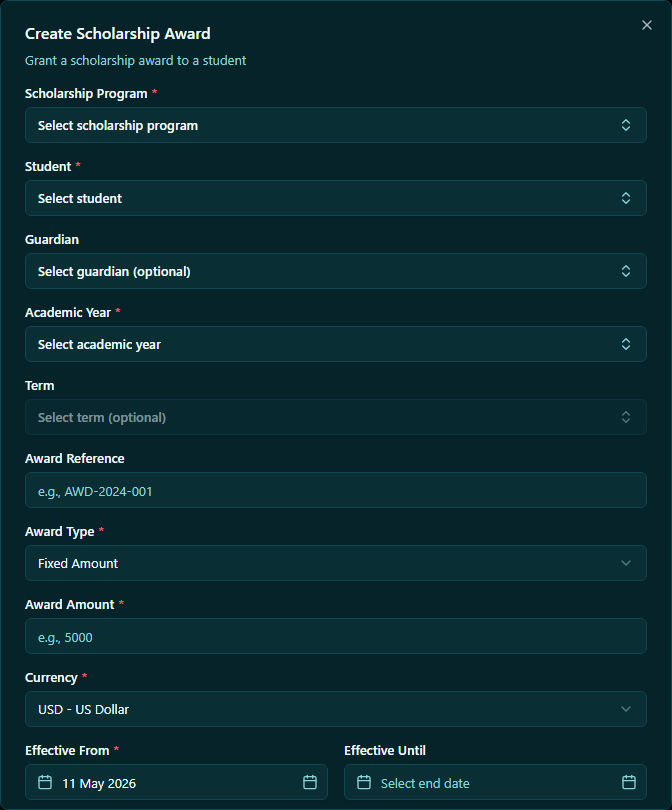
The student's outstanding invoice balance is automatically reduced by the award amount.
Award statuses
| Status | Meaning |
|---|---|
| Pending | Award created but not yet confirmed |
| Active | Award confirmed and applied to the student's account |
| Applied | The award has been offset against an invoice |
| Revoked | Award cancelled; invoice balance is reinstated |
Revoking an award
- Open the award record
- Click ⋮ menu → Revoke
- Enter a reason (e.g., "Student withdrew from school", "Criteria no longer met")
- Confirm
The invoice balance is restored to the original amount.
Scholarship applications
Navigation: Finance → Scholarships → Applications
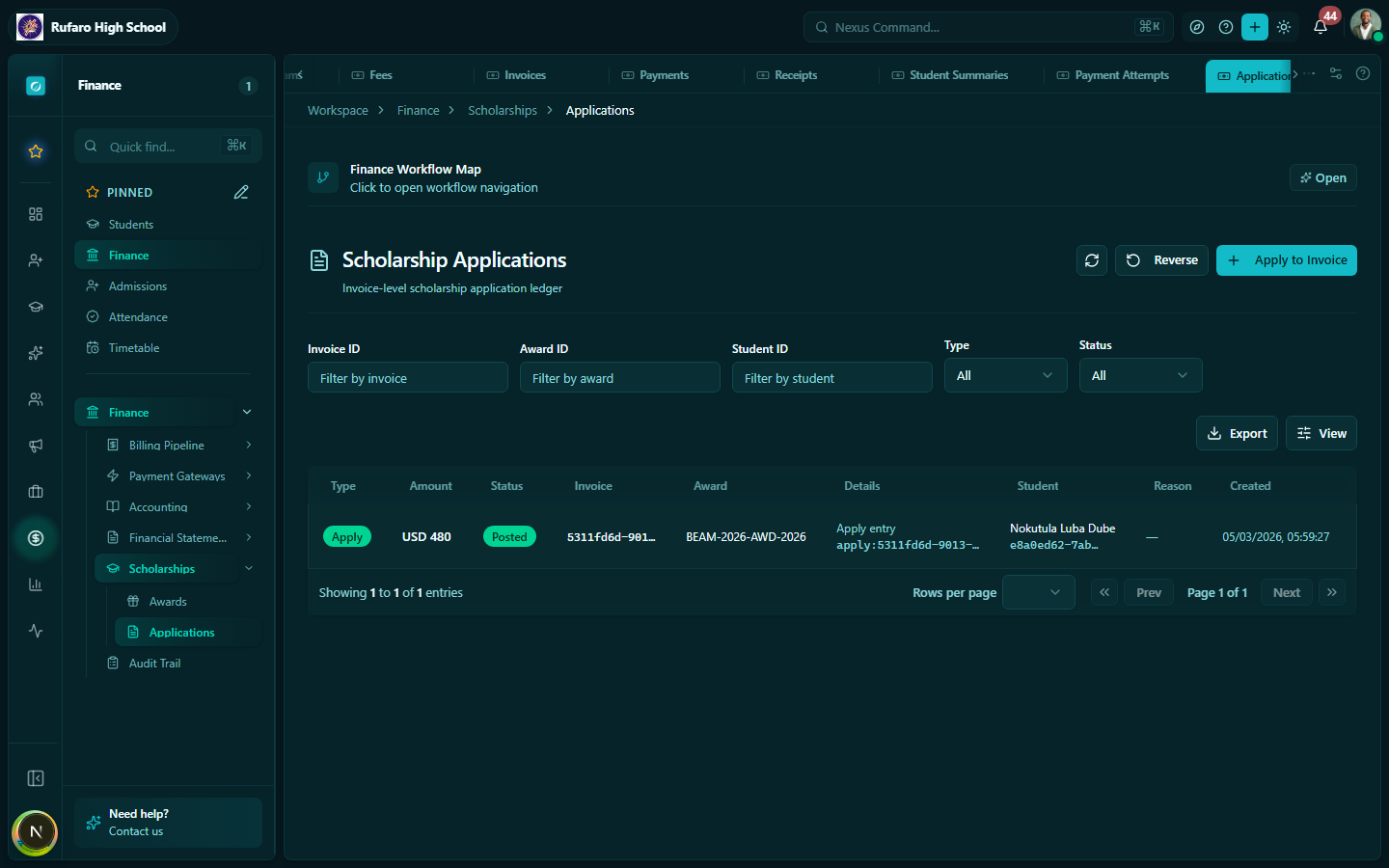
Applications allow students or guardians to formally request a scholarship through the system. Finance staff then review and approve or reject them.
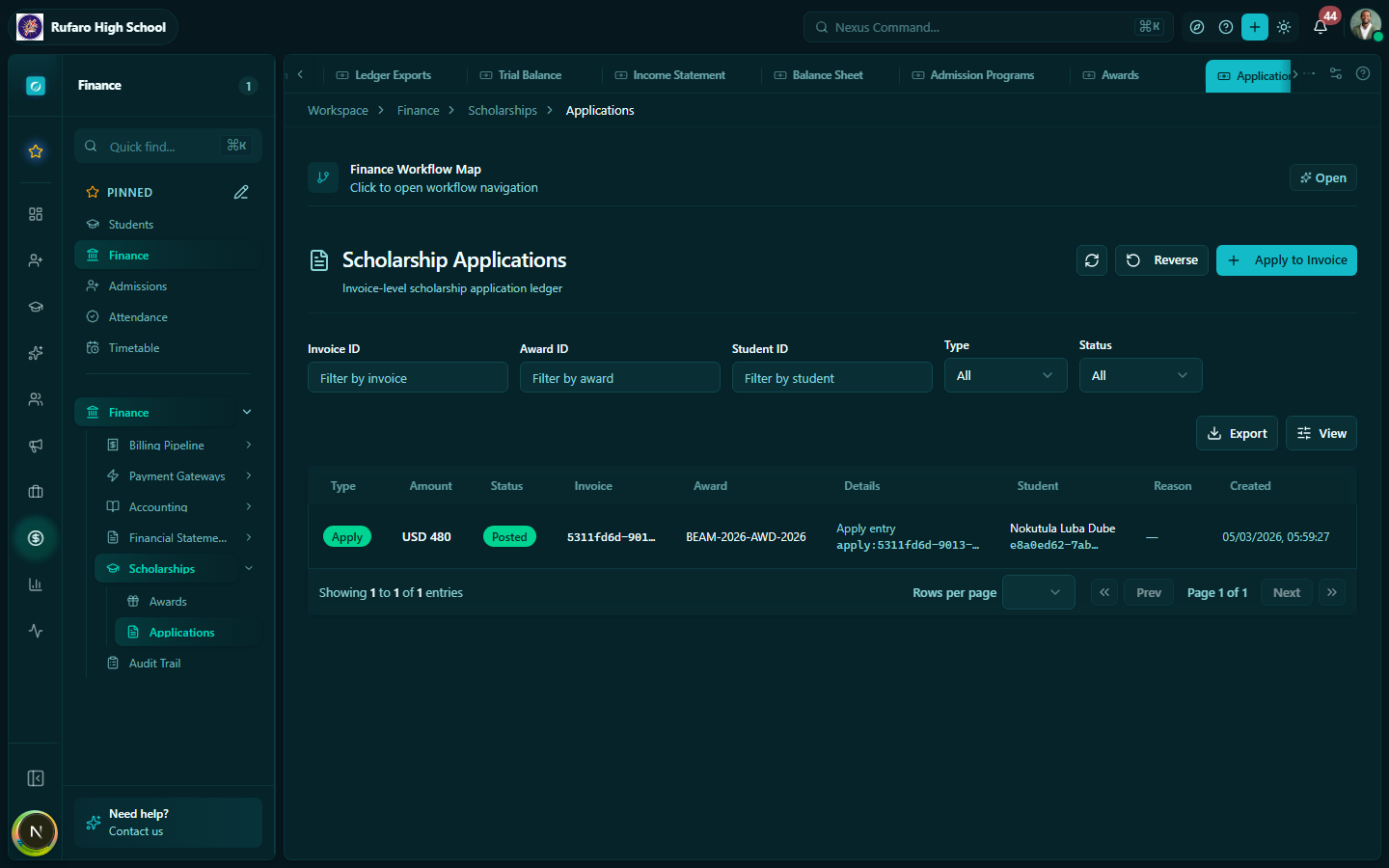
Receiving an application
Applications can arrive via:
- System submission — student or guardian applies online through the parent portal
- Manual entry — a staff member enters the application on behalf of the student
To enter an application manually:
- Click + New application
- Select the student and the program
- Enter any supporting notes
- Set status to Pending
- Click Save
Reviewing an application
- Click on the application row to open the detail
- Review the student's information and any attached documents
- Choose one of:
- Approve — creates an award automatically for the approved amount
- Reject — marks the application as rejected with a reason
- Request more information — returns the application to the applicant
After approval
When an application is approved:
- An award record is created automatically
- The award is applied to the student's invoice
- The student/guardian receives a notification (if configured in Communications)
Scholarship reporting
To see how your scholarship budget is being used:
- Go to Finance → Scholarships → Programs
- Click on a program to see:
- Total budget allocated
- Number of awards granted
- Total amount disbursed
- Remaining awards available
- Export the awards list as CSV for financial reporting
Common scholarship types in Zimbabwean schools
| Type | Description |
|---|---|
| Academic merit | Top students by grade average |
| Financial need | Students from low-income families |
| Government bursary | CALA / BEAM programme beneficiaries |
| Sports scholarship | Exceptional athletes |
| Staff children discount | Reduced fees for children of school staff |
| Sibling discount | Reduction when two or more siblings are enrolled |
| Founders' scholarship | Historical donor-funded awards |