Fee structures
A fee structure defines what your school charges students — the fee name, amount, type, and which students it applies to. Fees are the foundation of the billing pipeline: you must create fees before you can run billing batches or generate invoices.
Navigation: Finance → Fee Structures
What is a fee?
A fee is a single chargeable item. Examples:
- Term Tuition Fee — $600.00 per term, applies to all students
- Registration Fee — $50.00 once-off, applies to new enrolments
- O-Level Exam Fee — $120.00, applies to Form 4 only
- Transport Fee — $80.00 per term, applies to boarding students
Each fee has a type, an amount, a scope (who it applies to), and an approval status.
Fee page overview
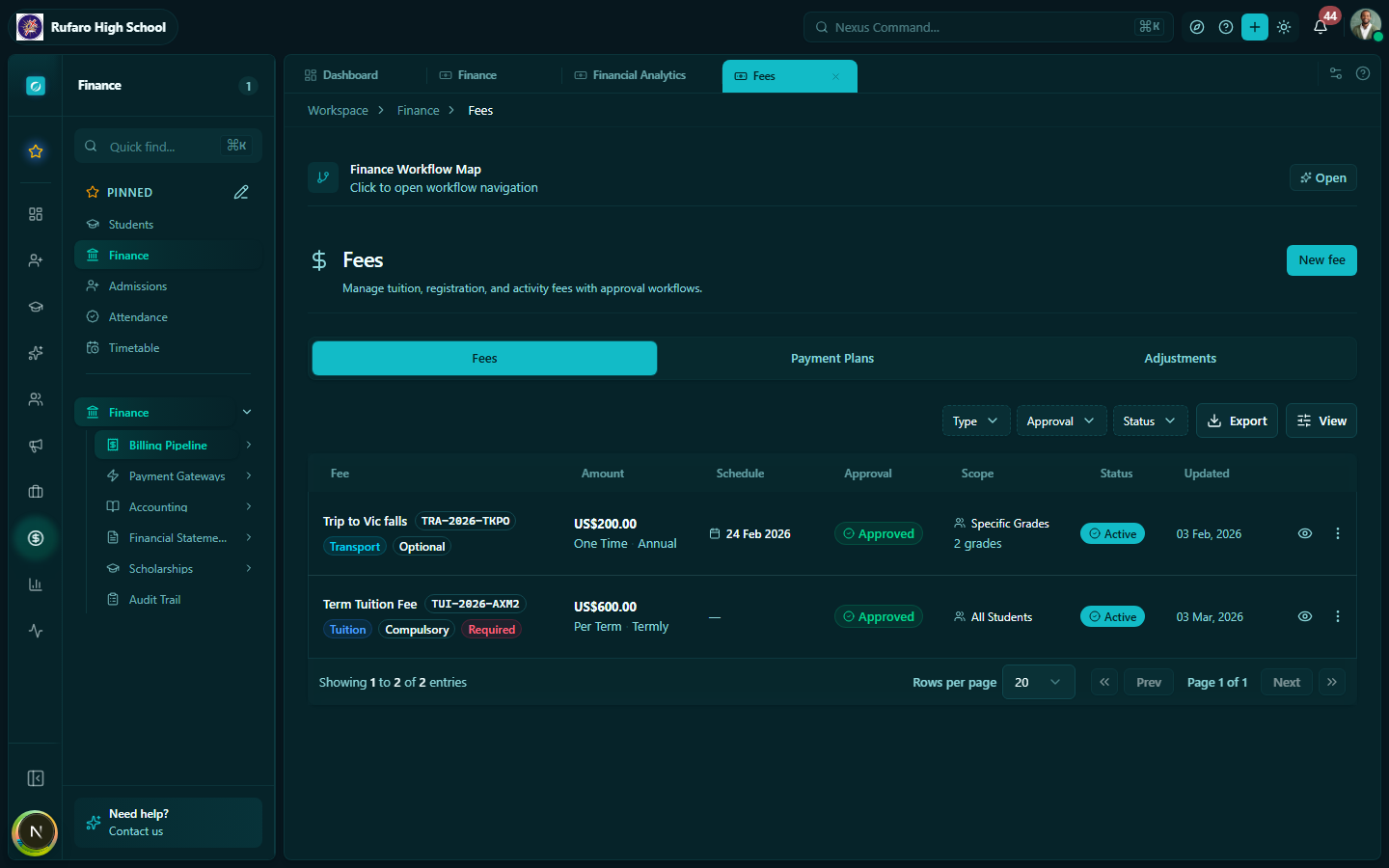
The Fees page shows three tabs:
| Tab | Contents |
|---|---|
| Fee Structures | The list of active and archived fees |
| Payment Plans | Instalment schedules that spread payments over time |
| Fee Adjustments | Discounts, surcharges, and late fee rules |
Creating a fee
- Navigate to Finance → Fee Structures
- Click + New fee
- Fill in the form:
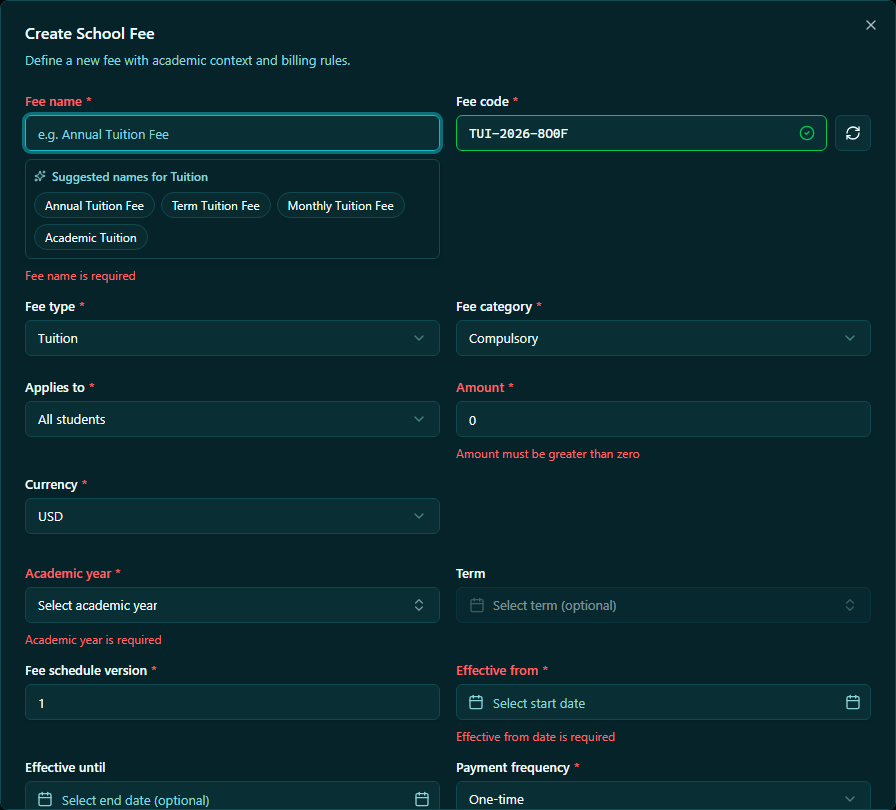
| Field | Required | Description |
|---|---|---|
| Fee name | ✓ | e.g., "Term Tuition Fee" |
| Fee code | Optional | Short reference code, e.g., "TUI-T1" |
| Fee type | ✓ | Tuition, Registration, Exam, Transport, Activity, Boarding, Other |
| Amount | ✓ | e.g., 600.00 |
| Currency | ✓ | USD or ZWL (defaults to school preference) |
| Frequency | ✓ | Per term, Per year, Once-off |
| Due date | Optional | Specific date payments are due |
| Late fee | Optional | Flat amount or % added after the due date |
| Scope | ✓ | See fee scoping below |
| Approval required | Optional | Toggle on to require a second approval before the fee is published |
| Notes | Optional | Internal notes for the finance team |
- Click Save fee
If Approval required is enabled, the fee will sit in Pending status until an authorised user approves it. Until approved, the fee cannot be used in billing runs.
Fee scoping
Fee scoping controls which students are billed for a fee.
| Scope option | Who gets billed |
|---|---|
| All students | Every enrolled student in the school |
| Grade level | All students in one or more grade levels (e.g., Form 1, Form 2) |
| Stream | Students in a specific stream (e.g., Sciences stream) |
| Class division | Students in a specific class (e.g., Form 1A) |
| Student type | Boarding students only, or Day students only |
| Manual / Ad-hoc | Applied to individual students via fee adjustments |
Payment plans
Payment plans let you offer students the option to pay in instalments rather than a lump sum. A payment plan is linked to one or more fee structures.
Navigation: Finance → Fee Structures → Payment Plans tab
Creating a payment plan
- Click + New payment plan
- Enter:
- Plan name — e.g., "Three-instalment plan"
- Linked fees — which fees this plan covers
- Total amount — calculated from linked fees
- Student types — e.g., all students, or boarding only
- Installments — add rows for each instalment:
- Due date
- Amount or percentage
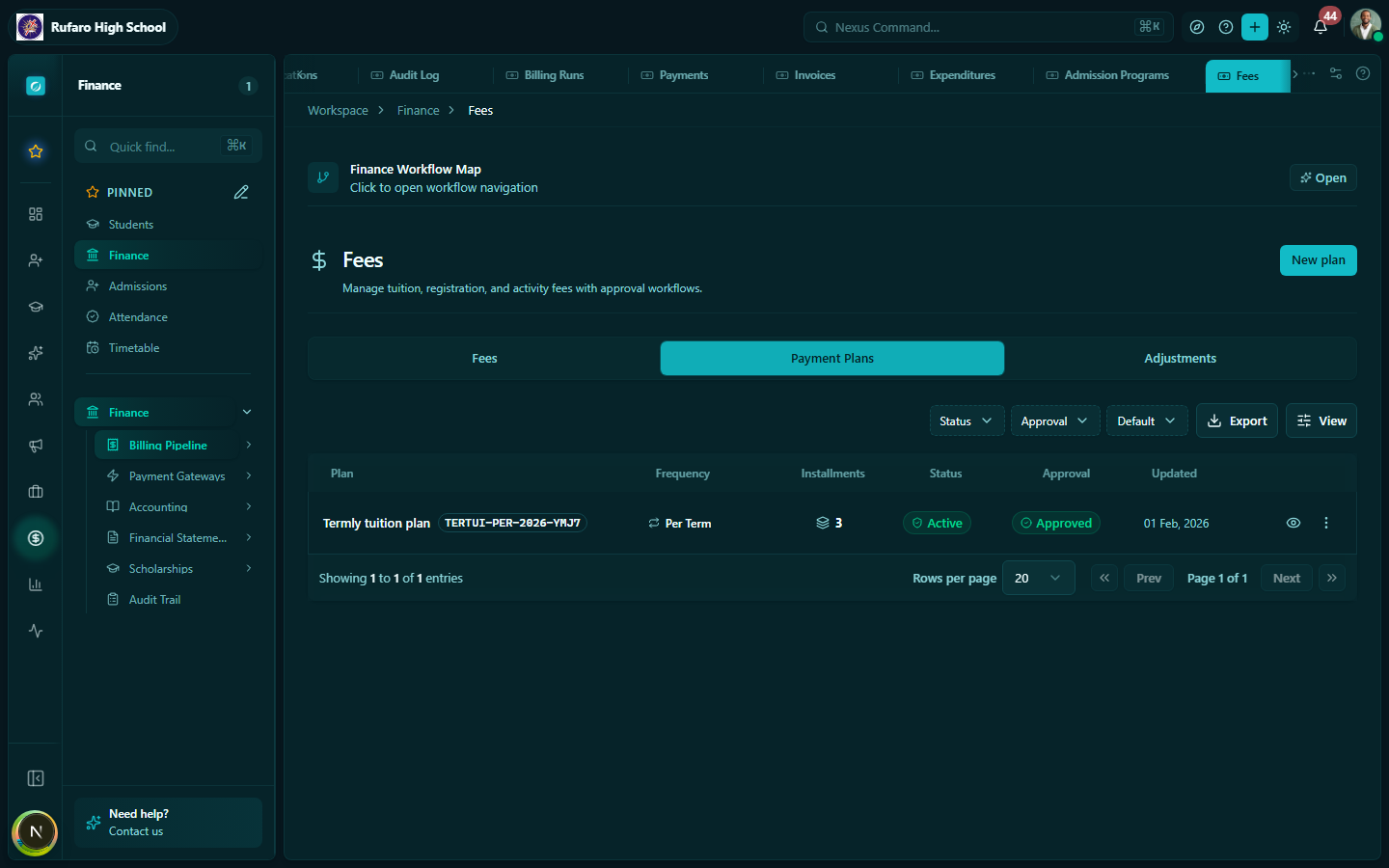
Payment plans do not change the total amount owed — they just define when partial payments are expected. Students on a payment plan will show their next instalment due on their invoice.
Fee adjustments
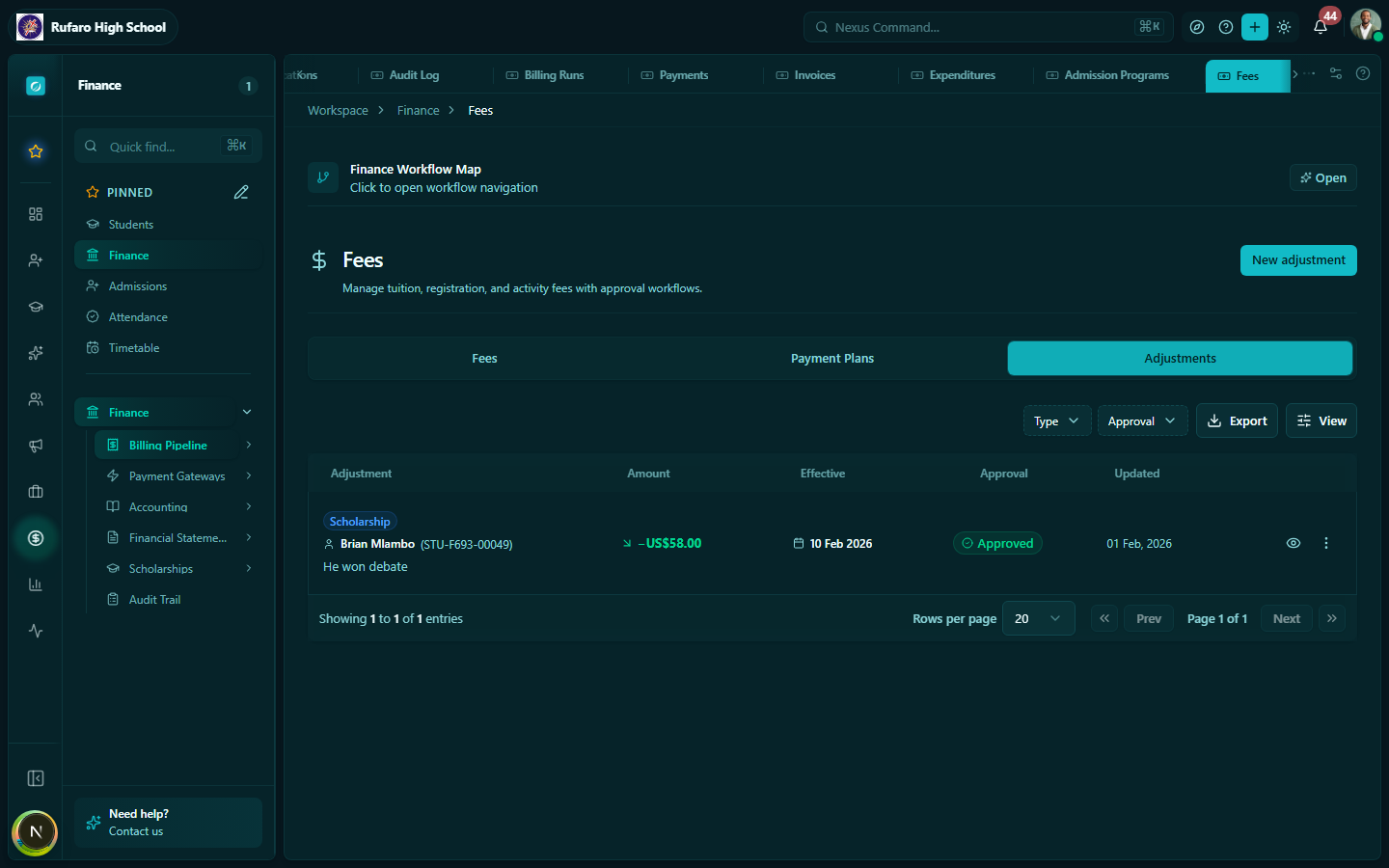
Fee adjustments are one-time or recurring modifications applied on top of a base fee for specific students or groups. Use them for:
- Discounts — e.g., sibling discount, scholarship top-up, staff child discount
- Surcharges — e.g., late registration surcharge
- Manual credits — e.g., overpayment credit
Navigation: Finance → Fee Structures → Fee Adjustments tab
Creating a fee adjustment
- Click + New adjustment
- Enter:
- Adjustment name — e.g., "Sibling discount 20%"
- Adjustment type — Discount, Surcharge, or Credit
- Value — flat amount or percentage
- Applies to — specific student(s) or a group
- Linked fee — which base fee this modifies
- Effective date range — when the adjustment is active
Editing a fee
- Find the fee in the list
- Click the ⋮ menu on the right → Edit
- Make your changes
- Click Save
Editing a fee that has already been used in a billing run will not retroactively change existing invoices. Only new billing runs will use the updated fee amount.
Archiving a fee
Fees that are no longer used should be archived rather than deleted to preserve billing history.
- Click ⋮ menu → Archive
- Confirm the action
Archived fees are hidden from the active list but remain visible when filtering by Archived status.
Common fee structures for Zimbabwean schools
| Fee | Type | Frequency | Typical scope |
|---|---|---|---|
| Term tuition | Tuition | Per term | All students |
| Registration / enrolment | Registration | Once-off | New students only |
| O-Level / A-Level exam | Exam | Per year | Form 4 / Form 6 |
| Development levy | Activity | Per year | All students |
| Transport | Transport | Per term | Boarding or bus students |
| Boarding / residence | Boarding | Per term | Boarding students |
| School uniform | Once-off | Once-off | New students |
| Extra-curricular activities | Activity | Per term | Opted-in students |