Ledger exports
Ledger exports let you download your school's financial data in formats compatible with external accounting software such as Pastel, QuickBooks, Sage, Xero, or a custom Excel spreadsheet. Use exports to share data with your external auditor or to maintain a parallel set of books.
Navigation: Finance → Exports
Ledger exports page
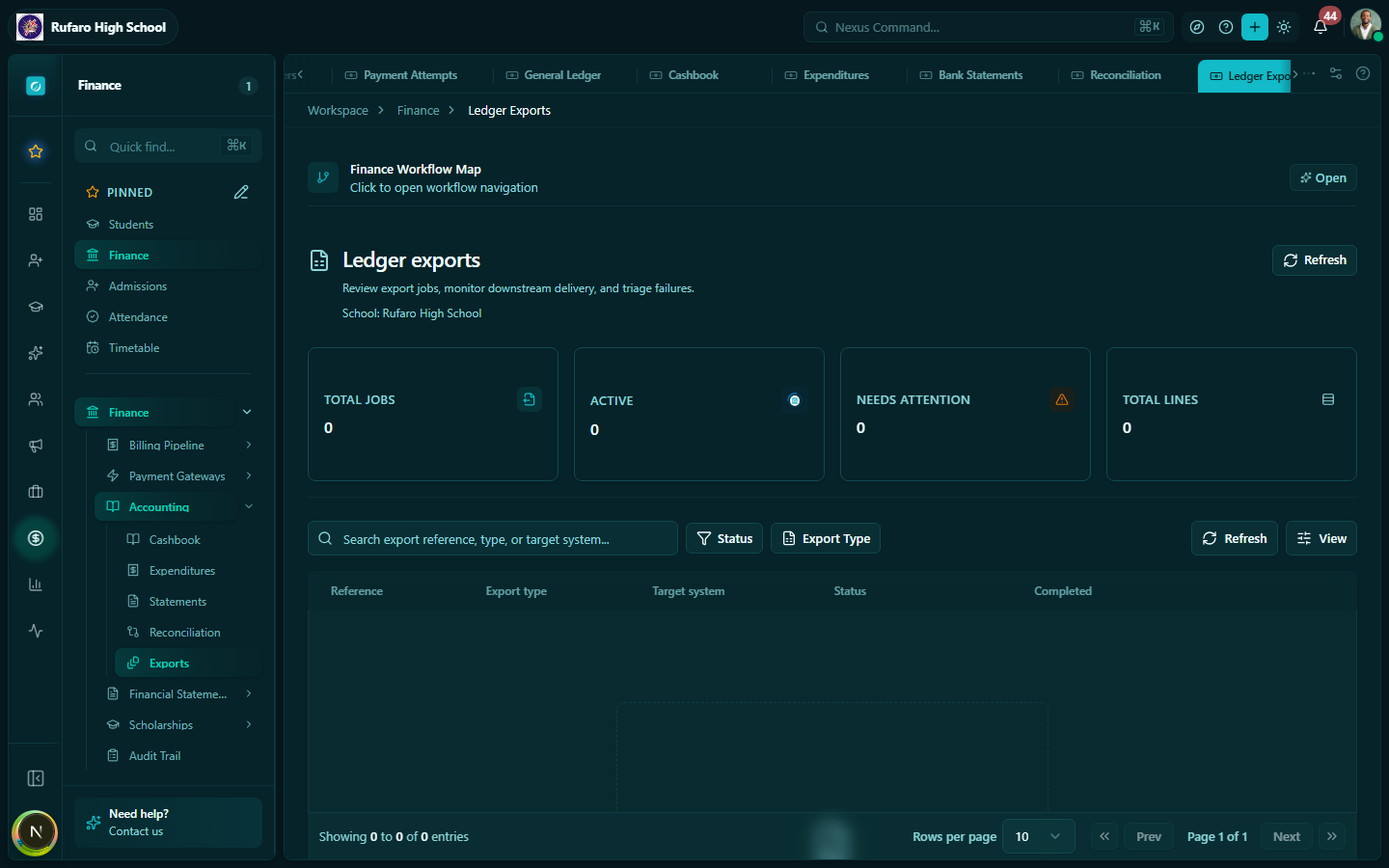
Reviewing ledger exports
Exports are generated automatically by the system (for example, as part of billing runs or accounting workflows). The Ledger Exports page shows the status of every export job.
| Column | Description |
|---|---|
| Reference | Auto-generated export job reference |
| Export type | The type of export (e.g. general ledger, cashbook, income & expenditure, audit pack) |
| Target system | The accounting system this export targets (Pastel, QuickBooks, Xero, generic, etc.) |
| Status | Current job status: Pending, Processing, Ready, Failed |
| Completed | When the export job finished |
Once an export shows Ready, click Download on its row to retrieve the file.
Export formats
| Format | Compatible with | Description |
|---|---|---|
| CSV (standard) | Excel, Google Sheets, any spreadsheet | Comma-separated values; most portable format |
| CSV (Pastel) | Pastel Accounting | Pre-formatted for Pastel import |
| CSV (QuickBooks) | QuickBooks Online / Desktop | IIF or CSV format for QuickBooks import |
| CSV (Xero) | Xero Accounting | Xero-compatible bank transaction CSV |
| OFX | Most desktop accounting software | Open Financial Exchange standard |
| Print / email | Formatted ledger report for manual review |
What the export contains
A standard ledger export includes:
| Column | Description |
|---|---|
| Date | Transaction date |
| Reference | Payment reference, invoice number, or journal ID |
| Description | Transaction description |
| Account code | GL account code |
| Account name | GL account name |
| Debit | Debit amount (if applicable) |
| Credit | Credit amount (if applicable) |
| Running balance | Cumulative balance for the account |
Importing the export into external software
Pastel
- In Pastel, go to File → Import → General Ledger
- Select the downloaded CSV file
- Map the columns to Pastel fields
- Click Import
QuickBooks Online
- In QuickBooks, go to Banking → Upload transactions
- Select the downloaded CSV
- Choose the bank account
- Map the columns and import
Xero
- In Xero, go to Accounting → Bank accounts → Import statement
- Upload the Xero-format CSV
- Match transactions to Xero accounts
Excel / Manual review
Open the CSV in Excel. Use the debit and credit columns to verify totals match your expected figures.
Scheduling regular exports
If your school produces regular reports for an auditor or governing board, set a recurring reminder to:
- Export GL data at the end of each term
- Export the bank reconciliation report
- Export the income statement and balance sheet
Save these files in a secure, organised folder for your records.
Troubleshooting exports
| Problem | Solution |
|---|---|
| Export stuck in "Processing" | Refresh after 2 minutes; contact support if still stuck |
| Empty export file | Check your date range — transactions may fall outside it |
| Wrong totals in export | Ensure bank reconciliation is complete for the period |
| Format not importing into software | Try a different format (CSV is most universally compatible) |