Reservations (Holds)
A reservation lets patrons claim a copy of a book before it is available. When all copies are checked out, a student or teacher can join the hold queue — and when a copy is returned, the next person in line is notified automatically.
Navigate to Operations → Library → Reservations.
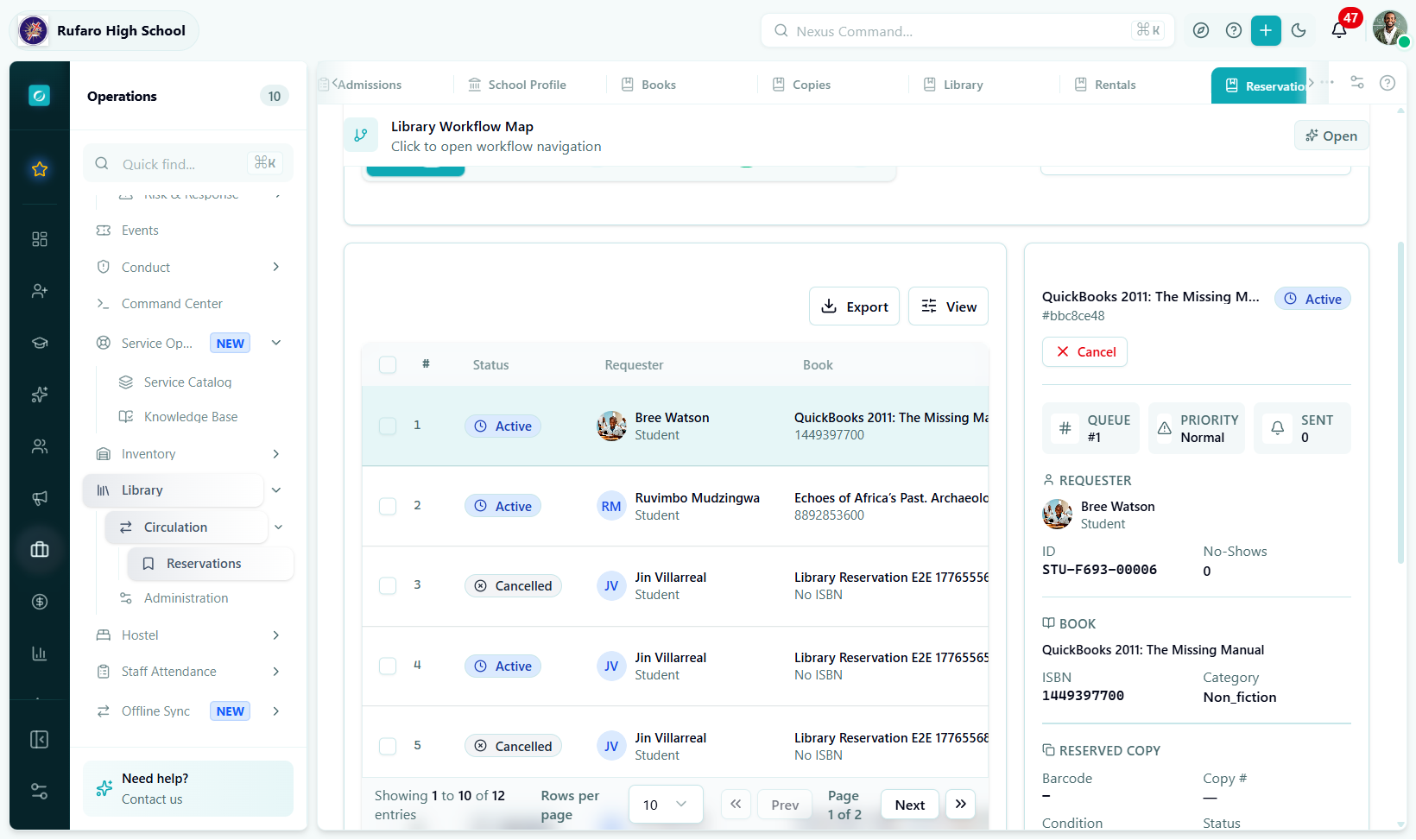
The Reservations queue. Queue Position 1 is the next person to receive the book. Staff should check this list daily when processing returns to see which reservations need to be fulfilled.
Reservation statuses
| Status | Meaning |
|---|---|
active | In the queue waiting for a copy |
notified | A copy has become available and the patron has been notified to pick it up |
fulfilled | The reserved copy was successfully borrowed |
cancelled | Cancelled by the patron or by staff |
expired | Patron did not pick up by the pickup deadline |
no_show | Patron was a no-show after notification |
Creating a reservation
Method 1: From the Reservations list
- Go to Operations → Library → Reservations
- Click New Reservation
- Search for and select the book the patron wants to hold
- Select the patron (Student or Teacher tab)
- Set an optional Expiry Date (when the reservation should auto-cancel if not filled)
- Add notes (optional)
- Click Create Reservation
The patron receives a notification confirming they are in the queue.
Method 2: From the book detail page
- Go to Operations → Library → Books
- Open the book the patron wants
- Click the Reservations tab
- Click New Reservation
- Select the patron and optionally set an expiry date
- Click Create
This method is convenient when a patron is asking at the desk — staff can immediately show the patron their queue position.
Queue position rules
Queue position determines who gets the next available copy:
- Priority reservations (set by staff for urgent needs) always go to the front
- Among non-priority reservations, position is determined by creation date (first come, first served)
- When a copy is returned, the system assigns it to the reservation at Queue Position 1
The queue renumbers automatically when a reservation is cancelled, expires, or is fulfilled. There are no gaps in queue positions.
Fulfilling a reservation
When a copy becomes available for the next reservation holder:
- The system automatically:
- Changes the copy's status to
reserved - Moves the reservation to
notifiedstatus - Sends the patron a pickup notification
- Changes the copy's status to
- The patron comes to the desk to collect
- Staff process the checkout normally via Rentals → New Checkout — the pre-selected copy is the reserved one
- The reservation status changes to
fulfilledautomatically when the checkout is processed
Pickup deadline
After the patron is notified, they have a default of 3 days to pick up the copy. If they don't arrive:
- The reservation status changes to
expiredorno_show - The copy's status reverts to
available - The next reservation in the queue is notified
Cancelling a reservation
Anyone (patron or staff) can cancel an active reservation:
- Find the reservation in the list
- Click Cancel Reservation in the Actions column
- Select a cancellation reason (optional but recommended)
- Confirm
The patron is notified of the cancellation. Queue positions of patrons below this reservation shift up automatically.
No-show handling
If a patron fails to collect after notification:
- Find the reservation in the Notified filter
- Click More actions → Mark as No-Show
- The copy is released back to
available(or to the next reservation in queue) - Optionally record a note for follow-up
Priority reservations
For urgent cases (exam materials, teacher requests), staff can prioritise a reservation:
- Find the reservation
- Click More actions → Set Priority
- Confirm
Priority reservations jump to Queue Position 1 above all non-priority holds.
Reservation notifications
The system sends automatic notifications at these events:
| Event | Notification type |
|---|---|
| Reservation created | Confirmation + queue position |
| Copy available (patron notified) | Pickup ready + pickup deadline |
| Pickup deadline approaching (24 h) | Reminder |
| Reservation expired or cancelled | Cancellation notice |
Notification channels depend on your school's communication settings (in-app, email, SMS).
Filters and search
| Filter | Options |
|---|---|
| Status tabs | All · Active · Notified · Fulfilled · Cancelled · Expired · No-Show |
| Search | Patron name, book title |
| Book | Filter to all reservations for a specific title |
| Borrower type | Student / Teacher |
| Date range | Filter by creation date |
| Priority only | Show only priority reservations |
Reservation table columns
| Column | Description |
|---|---|
| Queue Position | Current place in line (1 = next) |
| Book | Reserved title |
| Patron | Student or teacher name |
| Status | Current reservation status badge |
| Reserved On | Date the reservation was created |
| Pickup Deadline | Deadline to collect (only shown when status is notified) |
| Actions | Fulfil · Cancel · Priority · Delete |