Copies (Physical Items)
A copy is one physical item on your shelf. A single book title (e.g. The Great Gatsby) can have many copies — each with its own barcode, location, condition, and status. The Copies section lets you add, track, and manage every individual item.
Navigate to Operations → Library → Copies.
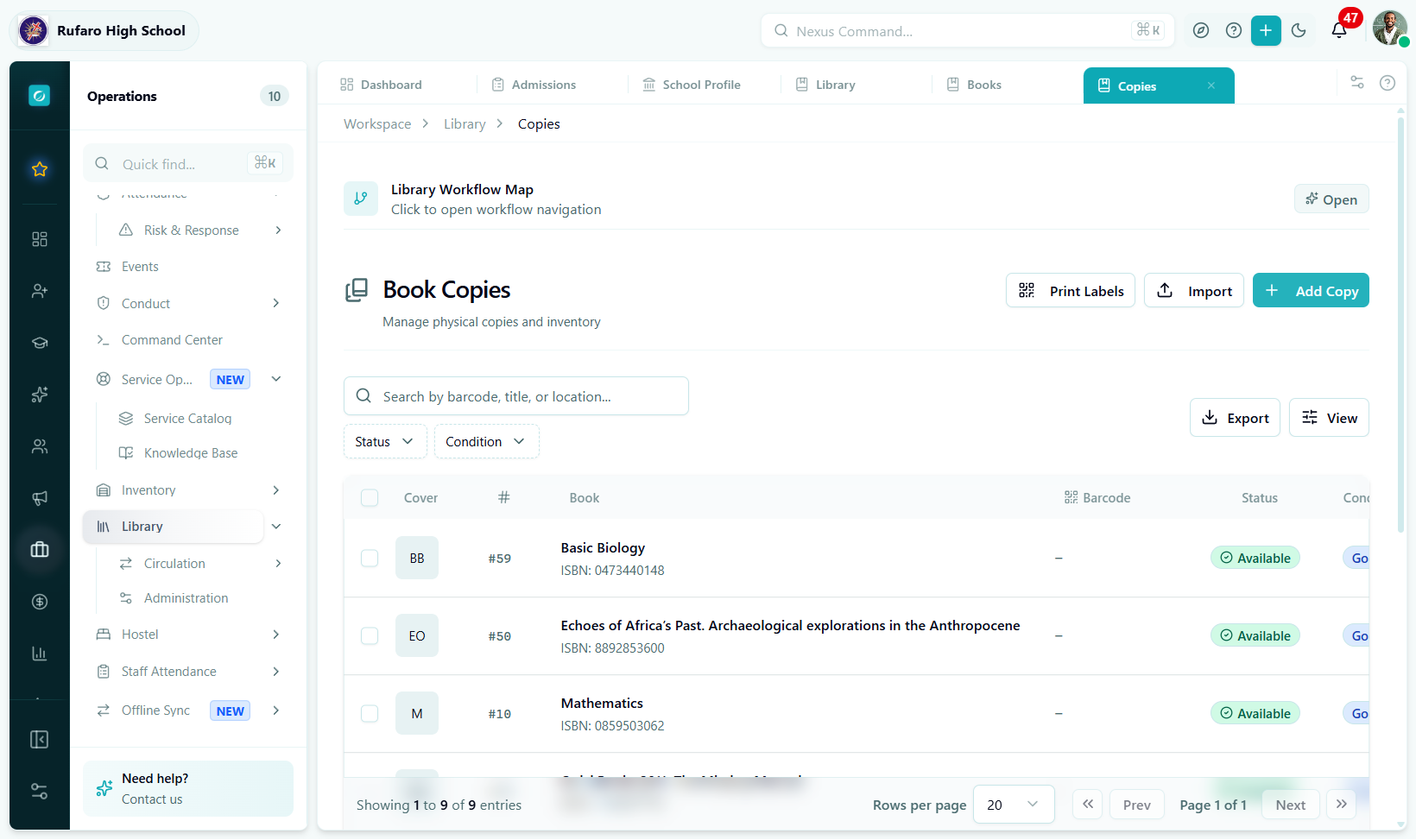
The Copies list. Each row is one physical item. Use the Barcode column to scan directly into the search field using a handheld scanner.
Adding copies
- Add a single copy
- Add multiple copies at once
- From the book detail page
- Navigate to Operations → Library → Copies
- Click Add Copy
- Select (or search for) the parent Book
- Enter identifiers:
- Barcode (required) — scan or type the barcode printed on the item
- RFID Tag (optional) — the RFID chip identifier if your library uses RFID
- Copy Number — auto-assigned in sequence (e.g. Copy #3)
- Set the initial Status (usually
available) - Set the initial Condition (
excellent,good,fair, orpoor) - Enter the Shelf Location (e.g. "Shelf B-4")
- Optionally fill in acquisition details (date, source, cost)
- Click Save
When you receive a batch of new books, add them all at once:
- Navigate to Operations → Library → Copies
- Click Add Multiple Copies
- Select the parent Book
- Enter the quantity to add
- The system auto-generates sequential barcodes — review and adjust if needed
- Set the default Status, Condition, and Location (applied to all copies in the batch)
- Click Add [N] Copies
The copies appear immediately in the list with sequentially numbered barcodes.
You can also add copies directly from a book's detail page:
- Open the book from the Books catalog
- Click the Copies tab
- Click Add Copy or Add Multiple Copies
- The book is pre-selected — fill in the remaining fields
- Save
This is the most convenient way to add copies when you are already looking at a specific title.
Copy statuses
A copy's status determines whether it can be borrowed:
| Status | Available for checkout? | Description |
|---|---|---|
available | ✓ | On the shelf and ready to borrow |
checked_out | — | Currently borrowed; set automatically on checkout |
reserved | — | Held at the desk for a reservation pickup |
repair | — | Being repaired — temporarily unavailable |
lost | — | Reported lost |
damaged | — | Damaged beyond normal wear |
withdrawn | — | Permanently removed from circulation |
The system automatically updates a copy's status to checked_out when you process a checkout and back to available when you process a return. You only need to set status manually for repair, lost, damaged, or withdrawn situations.
Copy conditions
Record the physical condition of each copy:
| Condition | Description |
|---|---|
excellent | Like new — no visible wear |
good | Minor wear — fully functional |
fair | Visible wear — covers intact |
poor | Heavy wear — still usable |
Update the condition whenever you process a return and notice the book's state has changed.
Editing a copy
- Find the copy in the list (search by barcode or book title)
- Click the Edit icon (pencil) in the Actions column
- Update the fields you need to change
- Click Save Changes
Changing status manually
- Find the copy
- Click More actions (three-dot) → Change Status
- Select the new status
- Add a note explaining the reason (recommended for audit trail)
- Confirm
Copy table columns
| Column | Description |
|---|---|
| Barcode | The unique barcode identifier — scan with a reader for instant lookup |
| Book | Parent title (linked to the book detail page) |
| Status | Current status badge (colour-coded) |
| Condition | Physical condition badge |
| Location | Shelf location |
| Last Activity | Timestamp of the most recent action (checkout, return, etc.) |
| Actions | Edit · Change status · Checkout · Delete |
Searching and filtering
| Filter | How to use |
|---|---|
| Search | Type a barcode, book title, or shelf location |
| Status | Filter to one status (e.g. show only available) |
| Condition | Filter by physical condition |
| Location | Filter by shelf or section |
| Book | Show only copies of a specific title |
Batch operations
Select multiple copies using the checkboxes on the left of each row, then use the Batch Actions bar that appears at the bottom:
| Operation | Description |
|---|---|
| Update Status | Change status for all selected copies |
| Update Condition | Update the condition of all selected copies |
| Update Location | Move copies to a new shelf location |
| Delete | Remove multiple copies (use with caution) |
Use batch operations to update conditions efficiently during a stocktake. Filter to a specific shelf location, select all, then use Update Condition to record the current state of an entire section.
Barcode and RFID tips
- Print barcodes using the Print Labels button in the Copies list toolbar. Labels include the barcode, copy number, and title.
- Scan directly into the search field — focus the search bar and scan to jump to a copy instantly.
- RFID readers connected to the kiosk station can log checkouts automatically without manual barcode entry.
- If two copies have the same barcode (import error), use Edit to correct the barcode on the duplicate.
Removing copies from circulation
Do not delete copies if you want to keep the rental history. Instead:
| Situation | Recommended action |
|---|---|
| Book is too worn to lend | Set status to withdrawn |
| Book is being repaired | Set status to repair |
| Book was lost by a borrower | Use Mark as Lost in the rental record |
| Book is permanently gone | Set status to withdrawn, then delete after confirming no active rentals |