Books (Catalog)
The Books section is the master catalog of every title in your library. A book record stores bibliographic details, rental settings, access rules, and aggregate copy counts. Physical items are tracked separately in Copies.
Navigate to Operations → Library → Books.
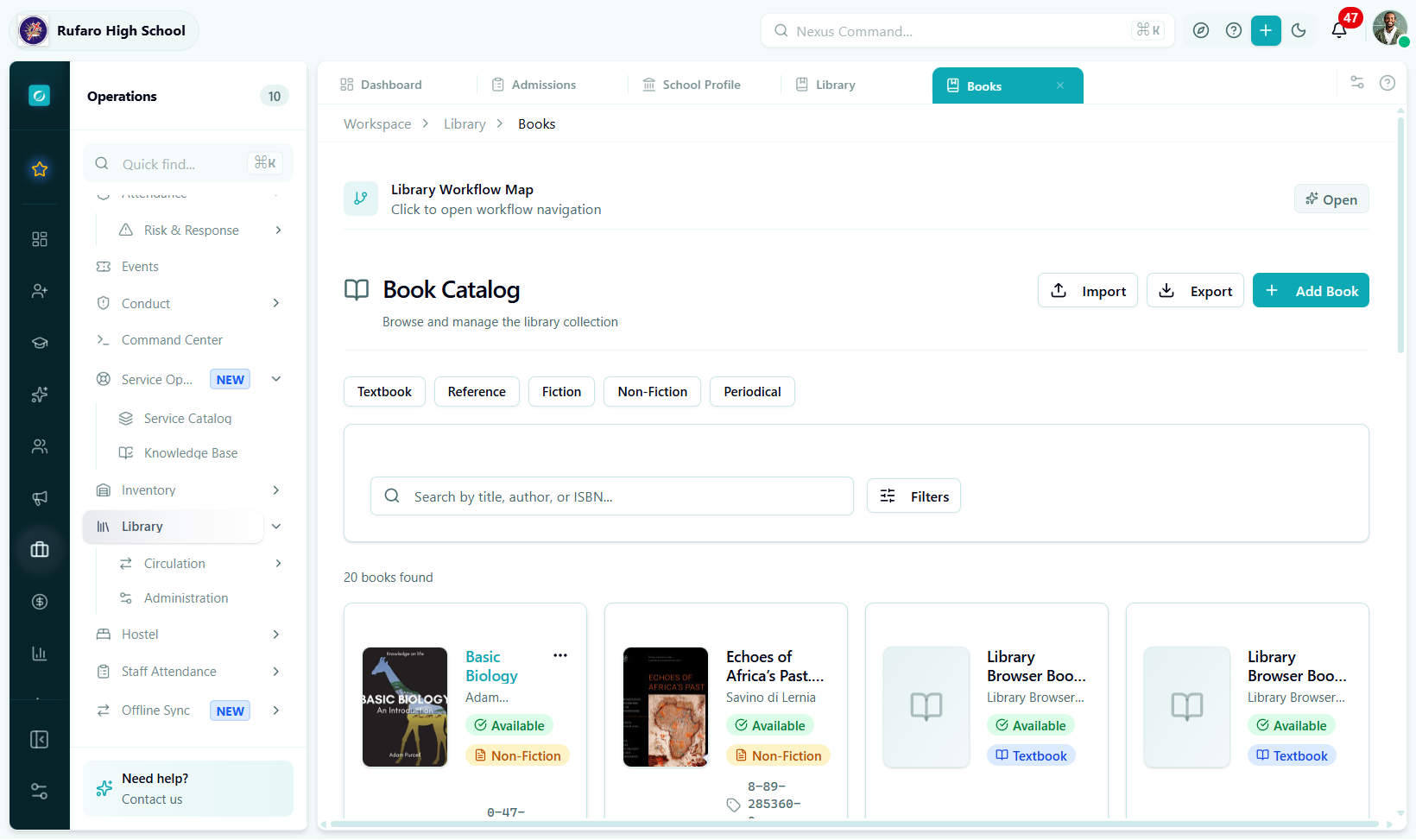
The Books catalog. Each card shows the cover, title, author, category badge, and available/total copy count. Use the filters to narrow down by category, format, or access level.
Adding a book
- Import by ISBN (recommended)
- Enter manually
The fastest way to add a new title is to import it from Google Books using the ISBN:
- Go to Operations → Library → Books
- Click Add Book
- Enter the ISBN in the ISBN field
- Click Search Google Books
- Select the correct result from the dropdown
- Review the auto-filled fields (title, authors, publisher, cover image, description)
- Set the Access Level and Rental Settings (not imported from Google Books)
- Click Save
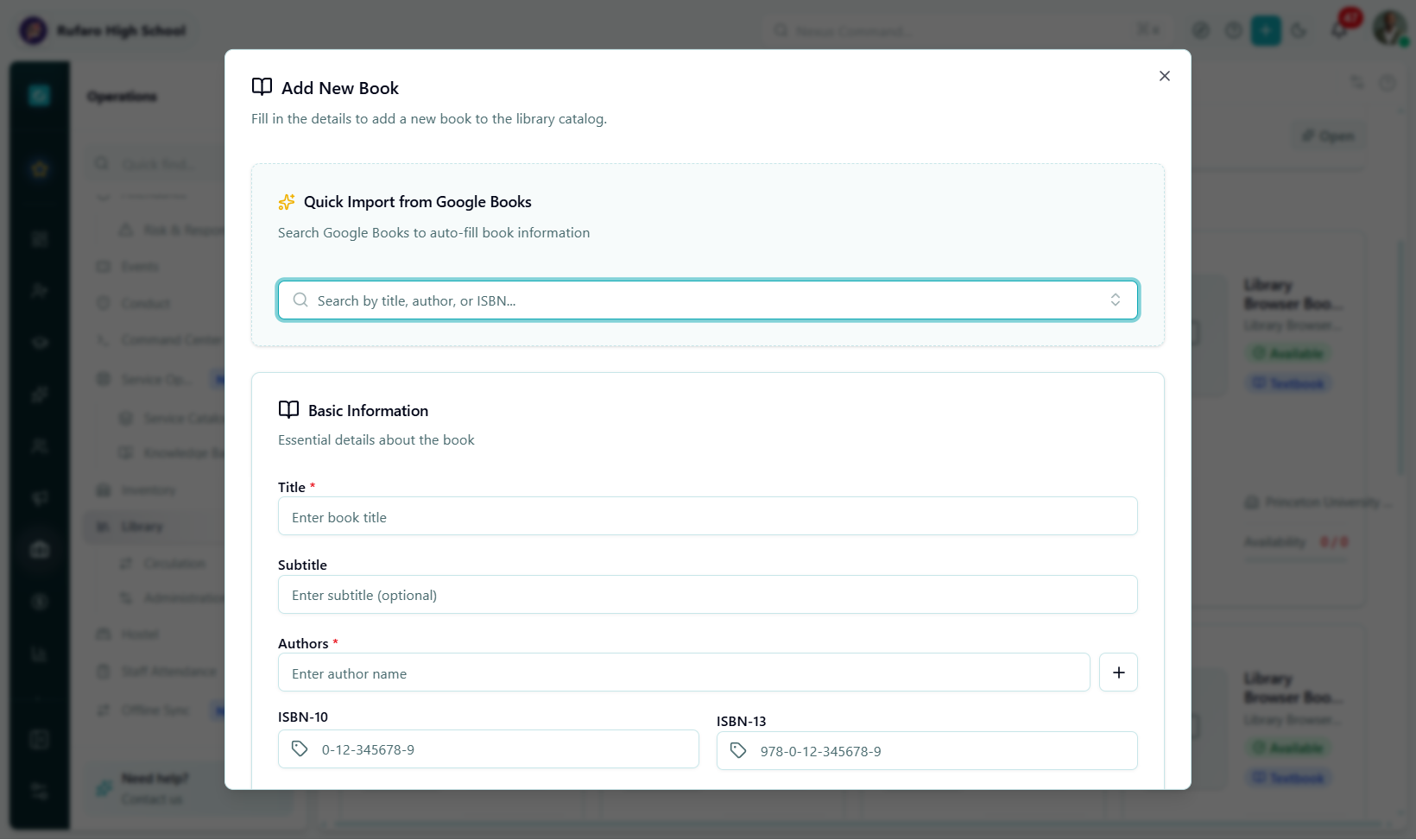
The Add Book dialog after an ISBN lookup. Review the auto-filled data before saving — especially the category and edition fields.
When the book isn't in Google Books or you need precise control:
- Go to Operations → Library → Books
- Click Add Book
- Fill in the required fields (marked with
*):- Title
* - Authors — click + Add Author to add multiple
* - Category
* - Format
* - Language
* - Access Level
*
- Title
- Fill optional fields as needed (ISBN, publisher, edition, subject, grade level, etc.)
- Configure Rental Settings:
- Rental duration (days)
- Late fee per day
- Replacement cost
- Upload a Cover Image (drag-and-drop or click to browse)
- Click Save
Editing a book
- Find the book in the catalog (search by title, author, or ISBN)
- Click the book card or the Edit icon (pencil) in the actions menu
- Update the fields you want to change
- Click Save Changes
The totalCopies, availableCopies, and related count fields on the book record are automatically computed from the physical copies. You cannot edit them directly — manage copies from the Copies section instead.
Book detail view
Click any book to open its detail page. The detail page has five tabs:
| Tab | What it shows |
|---|---|
| Overview | Title, authors, description, publication info, rental settings |
| Copies | All physical copies of this title with status and location |
| Rentals | Active and past rental history for this title |
| Reservations | Current hold requests for this title |
| Statistics | Borrow count over time, average rating, reviews |
Catalog fields reference
Required fields
| Field | Description |
|---|---|
title | Full title of the book |
authors | Array of author names (at least one required) |
category | See Book categories below |
format | hardcover, paperback, or ebook |
language | Language code (e.g. en, fr) |
accessLevel | Who can borrow — see Access levels |
Optional fields
| Field | Description |
|---|---|
isbn | ISBN-10 |
isbn13 | ISBN-13 |
subtitle | Optional subtitle |
editors | Editor names |
illustrators | Illustrator names |
publisher | Publisher name |
publicationDate | Publication date |
edition | Edition number or description |
deweyDecimal | Dewey Decimal classification code |
subjectArea | Subject area (e.g. "Mathematics") |
gradeLevel | Recommended grade (e.g. "Grade 8") |
pages | Page count |
dimensions | Physical size |
shelfLocation | Default shelf location for new copies |
section | Library section name |
description | Full book description |
summary | Short summary (shown on card) |
tags | Custom classification tags |
Rental settings
| Field | Description | Default |
|---|---|---|
isAvailableForRental | Whether this book can be borrowed | true |
rentalDurationDays | Default loan period in days | 14 |
lateFeePerDay | Fee charged per overdue day | Set by school policy |
replacementCost | Cost if the book is lost | Purchase cost |
E-book settings
| Field | Description |
|---|---|
hasEbookVersion | Toggle on if an e-book version exists |
ebookUrl | URL to the e-book resource |
Book categories
| Category | Description |
|---|---|
textbook | Curriculum-aligned course textbooks |
reference | Encyclopaedias, dictionaries, atlases |
fiction | Novels, short stories, plays |
non_fiction | Biographies, history, science |
periodical | Magazines, journals, newspapers |
Book formats
| Format | Description |
|---|---|
hardcover | Hardbound — more durable, higher replacement cost |
paperback | Paperbound — lighter, lower cost |
ebook | Digital only — no physical copies |
Book statuses
The status field reflects the overall state of a title's availability:
| Status | Meaning |
|---|---|
available | At least one copy is ready for checkout |
processing | All copies are being catalogued or prepared |
repair | All copies are in repair |
lost | All copies have been reported lost |
withdrawn | Deliberately removed from active circulation |
Access levels
Access levels control who can borrow a title:
| Level | Who can borrow |
|---|---|
all_students | Any enrolled student, plus all teachers |
specific_grades | Students in specified grade levels only |
teachers_only | Teaching and administrative staff only |
For books that need extra control (e.g. exam materials), toggle Restricted on and enter a restriction reason. Restricted books can only be borrowed with explicit staff approval.
Searching and filtering
Text search
Type in the search bar at the top of the Books page. The catalog searches across:
- Title
- Authors
- ISBN / ISBN-13
- Publisher
- Tags
Filter chips
| Filter | Options |
|---|---|
| Category | Textbook · Reference · Fiction · Non-fiction · Periodical |
| Format | Hardcover · Paperback · Ebook |
| Status | Available · Processing · Repair · Lost · Withdrawn |
| Access Level | All Students · Specific Grades · Teachers Only |
| Available only | Hides books with zero available copies |
| Subject Area | Text filter on subject field |
| Grade Level | Dropdown filter |
| Language | Dropdown filter |
Deleting a book
Deleting a book record also removes all linked copy records and rental history. This action is irreversible.
If you want to stop a title from being borrowed without losing history, set its status to withdrawn instead.
To delete:
- Open the book detail page
- Click More actions (three-dot menu) → Delete
- Type the book title to confirm
- Click Delete permanently