Teacher Self-Service
Teachers can view their own attendance history and check themselves in directly from the Teacher Portal - without needing administrator access or a kiosk.
Accessing the Teacher Portal
The Teacher Portal is a persona-scoped view. To access it:
- Click your profile avatar in the top-right corner of the app.
- Select Switch View or use the Persona Switcher to change to your Teacher persona.
- Navigate to Portal -> Teacher Portal -> My Attendance.
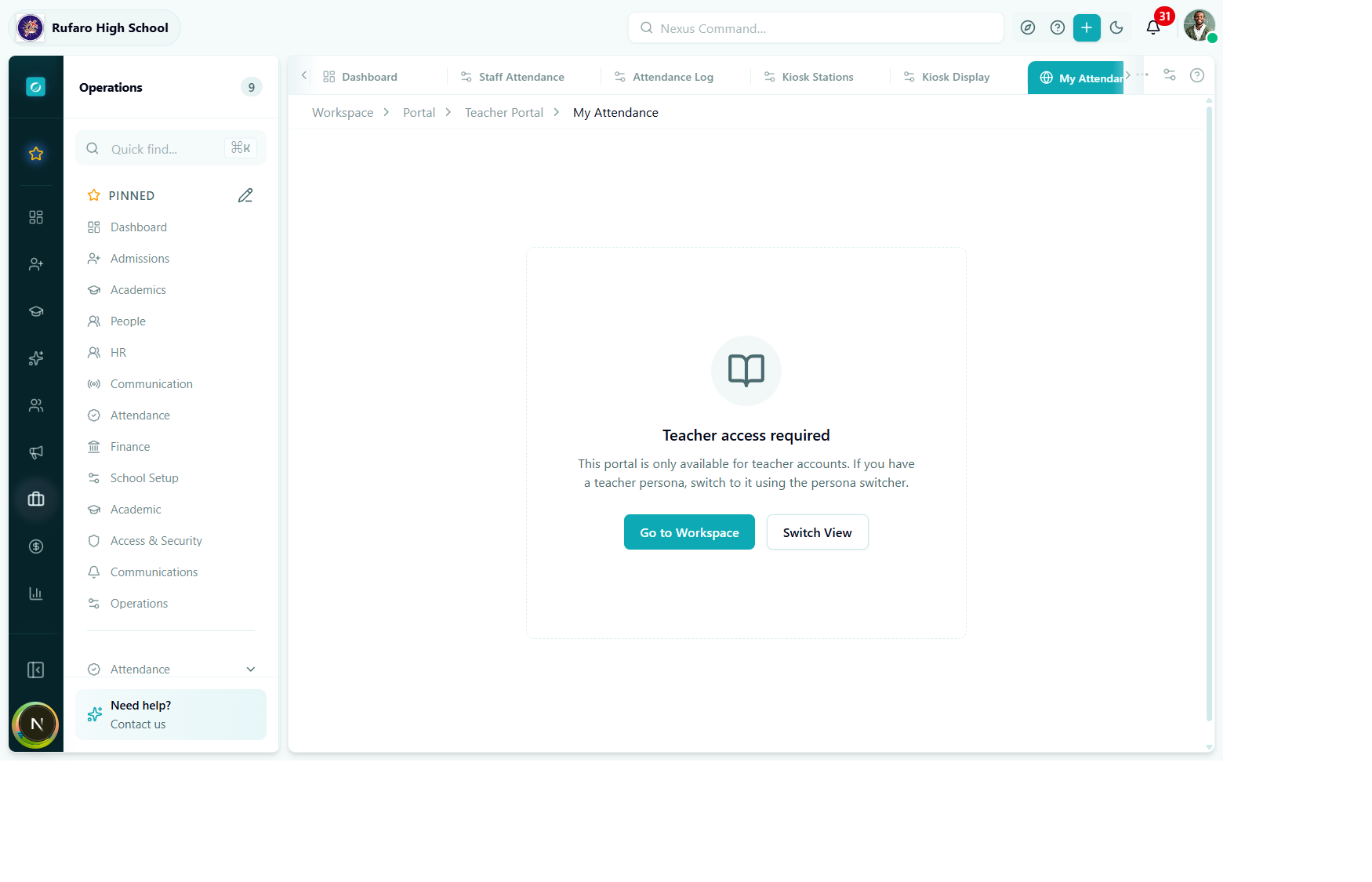
If you see this screen, your current session is using an administrator or other non-teacher persona. Click Switch View to activate your teacher persona.
Makronexus uses personas to separate administrator views from staff/teacher views. If your account has both an admin role and a teacher role, you need to be in the teacher persona to access the My Attendance portal. Use the persona switcher in your profile menu.
My Attendance view
Once in the teacher persona, the My Attendance page shows:
Summary cards
At the top, four cards summarise the current academic year:
| Card | Description |
|---|---|
| Present days | Total days marked present |
| Absent days | Total days with an absent record |
| Late arrivals | Total days where isLate = true |
| Leave days used | Total authorised leave days taken |
Attendance calendar
A monthly calendar view colour-codes each working day:
| Colour | Meaning |
|---|---|
| Green | Present |
| Red | Absent |
| Amber | Late |
| Purple | On Leave |
| Grey | Weekend / Holiday |
| Empty | No record yet |
Click any day to see the full record detail (check-in time, method, notes from supervisor, verification status).
Record list
Below the calendar, a scrollable list shows each record in reverse chronological order with:
- Date and day of week
- Status badge
- Check-in / check-out times
- Hours worked
- Supervisor note (if any)
Self check-in from the portal
The Teacher Portal also exposes the Self Check-In widget (the same card available in the Attendance Log). To check in:
- Navigate to Portal -> Teacher Portal -> My Attendance.
- Locate the Check In card.
- Select the marking method (
Appis most accurate for portal check-ins). - Optionally add a note.
- Click Check In.
Your record for today is created with the current timestamp. If you already have a check-in for today, clicking Check In again updates your check-in time.
To record your departure, click Check Out on the same card.
Viewing from the Attendance Log (admin)
Administrators can view any staff member's individual record by:
- Opening the Attendance Log.
- Finding the staff member in the board or table.
- Clicking their card or the expand icon to open the record drawer.
The record drawer shows the same fields as the teacher portal but with additional admin-only fields (supervisor notes, verified by/at, leave request ID).
Notifications
When a supervisor verifies or corrects a teacher's attendance record, the teacher receives an in-app notification (bell icon). The notification links directly to the affected record in their My Attendance view.