Rentals (Checkouts & Returns)
The Rentals section manages the entire borrowing lifecycle — from the moment a copy leaves the shelf to when it comes back (and any fees that arise along the way).
Navigate to Operations → Library → Rentals.
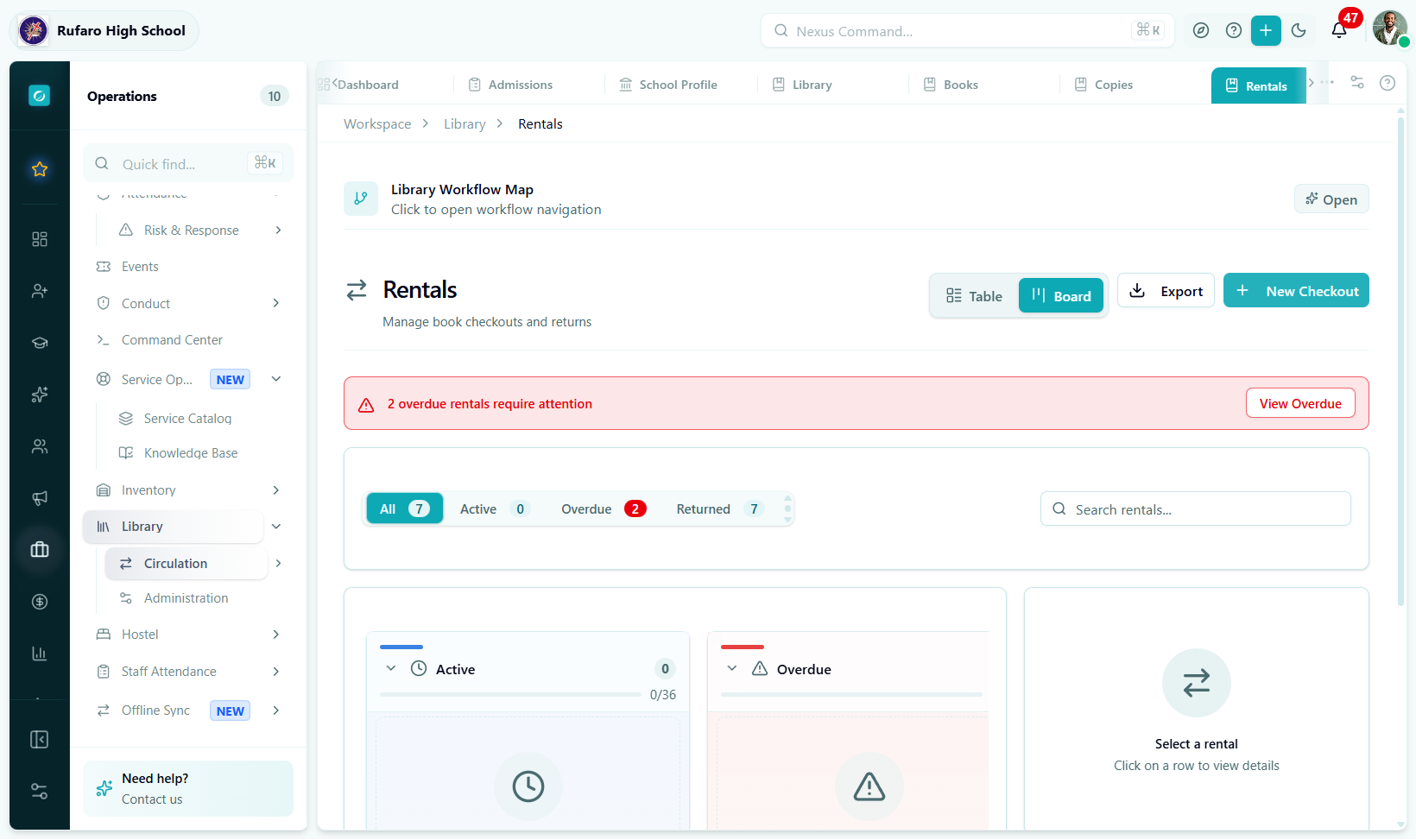
The Rentals list. The Overdue tab is the most important one to monitor daily. Amber rows are overdue — click any row to process a return or send a reminder.
Creating a checkout
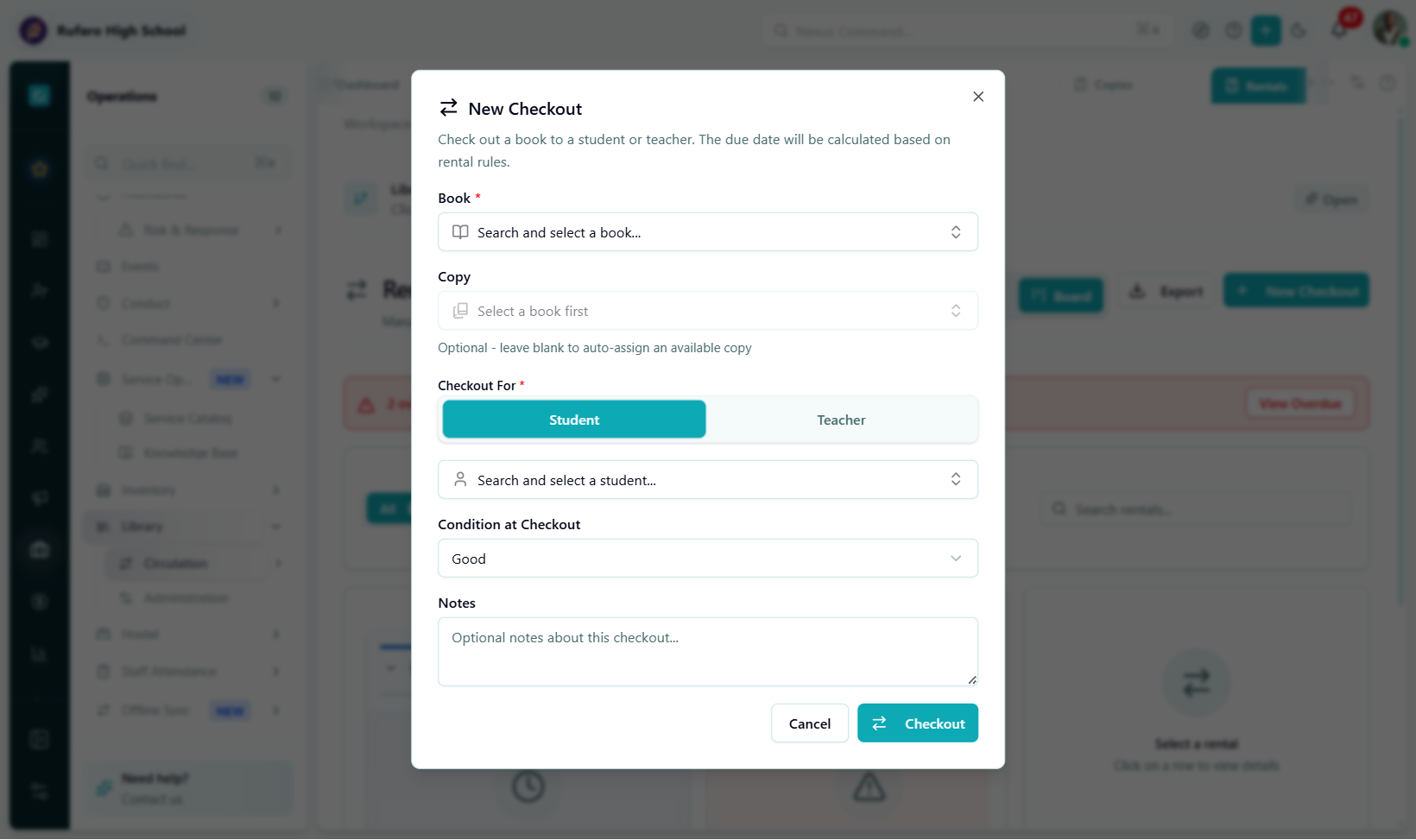
The New Checkout dialog. The due date is calculated automatically based on the book's rental duration setting. Change it if needed for special circumstances.
- Navigate to Operations → Library → Rentals
- Click New Checkout
- Search and select the book — type the title or ISBN
- Select the copy — the system auto-selects the first available copy. To choose a specific copy (e.g. by barcode scan), click the copy field and scan or type the barcode
- Select the borrower:
- Click the Student tab and search by name or student number
- Click the Teacher tab to lend to a staff member
- Record condition at checkout — note the current condition for comparison at return
- Confirm the due date — defaults to today + the book's
rentalDurationDays. You can override it for special cases - Add notes (optional)
- Click Checkout
The copy status changes to checked_out and the rental appears in the Active list.
A checkout will be blocked if:
- The book has no available copies → check Copies or view the Reservations queue
- The borrower has reached their maximum active rentals
- The book's access level doesn't allow this borrower
- The borrower has unpaid fees exceeding the school's fee limit
See Troubleshooting for solutions.
Processing a return
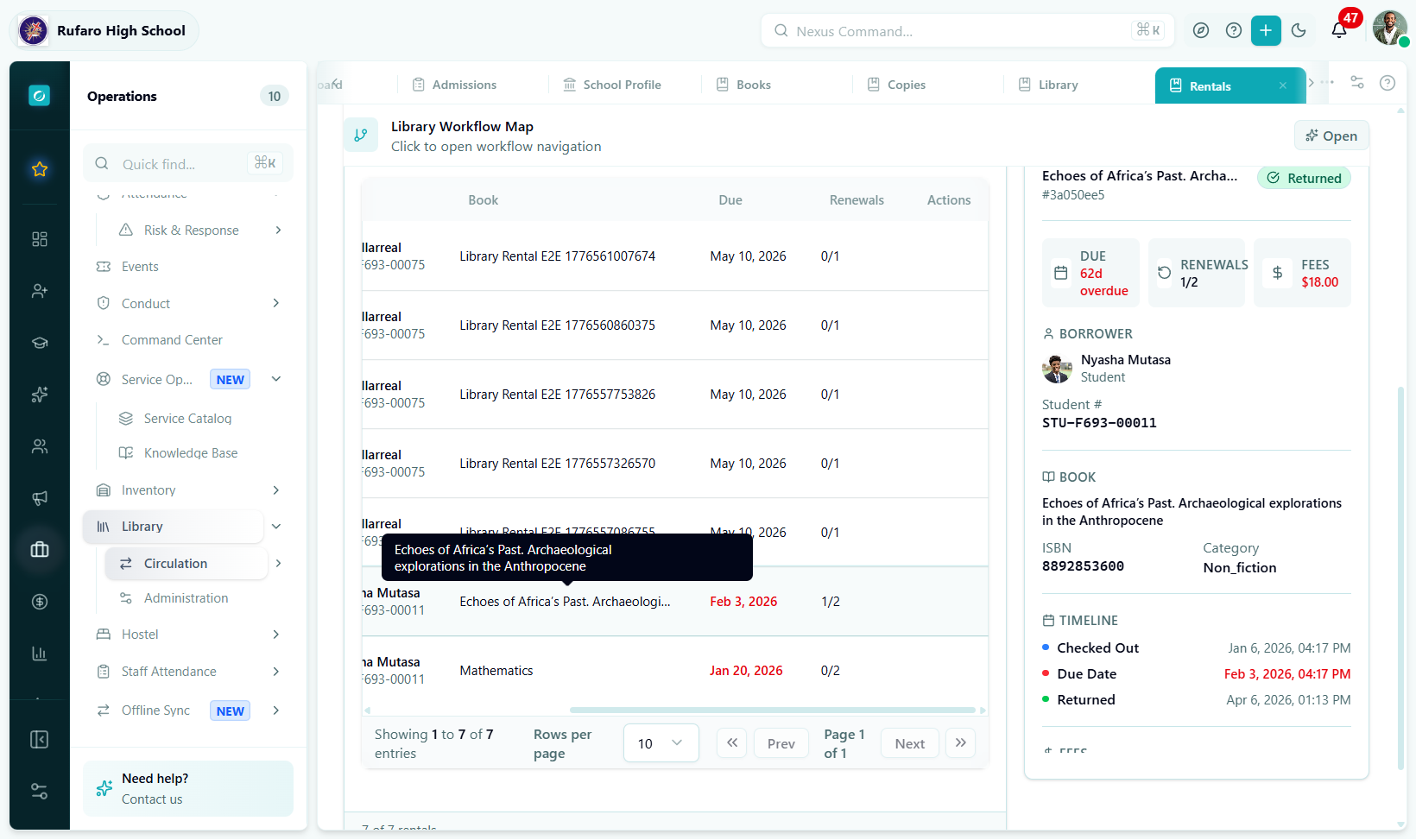
The Process Return dialog calculates late fees automatically. If the book comes back damaged, check Report Damage to add a damage fee before completing the return.
- Find the rental using the search bar (search by borrower name or book title) or scroll to it in the Active / Overdue list
- Click Return in the Actions column (or click the row, then click Return)
- Select the Condition at Return — if it's worse than at checkout, check Report Damage:
- Describe the damage in the text field
- The system adds a damage fee (set on the book record as
replacementCostor a custom amount)
- Review the Fee Summary:
- Late Fee = days overdue × late fee per day (from the book record)
- Damage Fee = amount you entered
- Total = late + damage
- To collect payment now, toggle on Record Payment and select the payment method
- Click Process Return
The copy status returns to available (or damaged if damage was reported).
Renewing a loan
Borrowers who need more time can request a renewal before the due date:
- Find the active rental
- Click Renew in the Actions column
- Confirm the new due date (advances by the book's rental duration)
- Add a note (optional)
- Click Save Renewal
Renewal limits
| Rule | Default |
|---|---|
| Maximum renewals per rental | 2 |
| Can renew if overdue | No — must return first |
| Can renew if another patron has a reservation | No — must be returned for the hold |
Sending overdue reminders
- Go to the Overdue tab
- Find the rental
- Click Send Reminder — the system sends a notification to the borrower
The reminderSentCount field increments each time a reminder is sent. Check this before sending to avoid excessive contact.
Marking a book as lost
If a borrower reports that they cannot find a borrowed book:
- Find the rental in the Active or Overdue list
- Click More actions (three-dot) → Mark as Lost
- The system:
- Changes the rental status to
lost - Changes the copy status to
lost - Calculates a replacement fee (the book's
replacementCost)
- Changes the rental status to
- Collect the replacement fee from the borrower (use Record Payment)
- Once paid, you can add a new copy to restore the title's inventory
Fee management
How fees are calculated
| Fee type | Calculation | Where to configure |
|---|---|---|
| Late fee | Days overdue × lateFeePerDay | Book record — Rental Settings |
| Damage fee | Manually entered at return | Return dialog |
| Lost/replacement fee | replacementCost from book record | Book record — Rental Settings |
Recording a payment
- Find the rental with outstanding fees
- Click Record Payment
- Enter the amount paid
- Select the payment method (cash, transfer, etc.)
- Add a note (optional)
- Confirm
After payment the rental shows feePaid: true and a feePaidDate timestamp.
Waiving a fee
Only users with library.manage permission can waive fees:
- Open the rental
- Click Waive Fee
- Enter the reason (kept as an internal note)
- Confirm
Rental filters and search
| Filter | Options |
|---|---|
| Status tabs | All · Active · Overdue · Returned · Lost · Damaged |
| Search | Borrower name, book title, barcode |
| Overdue only | Toggle to show only past-due rentals |
| Fee status | Unpaid fees only / All |
| Borrower type | Student / Teacher |
| Date range | Filter by checkout date range |
Rental table columns
| Column | Description |
|---|---|
| Book | Title of the borrowed book |
| Borrower | Student or teacher name |
| Checkout Date | When the copy left the shelf |
| Due Date | When it should be returned |
| Status | Active · Overdue · Returned · Lost · Damaged |
| Days Overdue | Number of days past due (only shown if isOverdue) |
| Fees | Outstanding fees (0 if no fees or fees paid) |
| Actions | Return · Renew · Remind · Lost · Delete |