Attendance Log
The Attendance Log is the master record viewer for staff attendance. Every record - regardless of how it was created - appears here. Administrators use it to search historical data, correct mistakes, verify records, and export reports.
Navigate to Operations -> Staff Attendance -> Attendance Log.
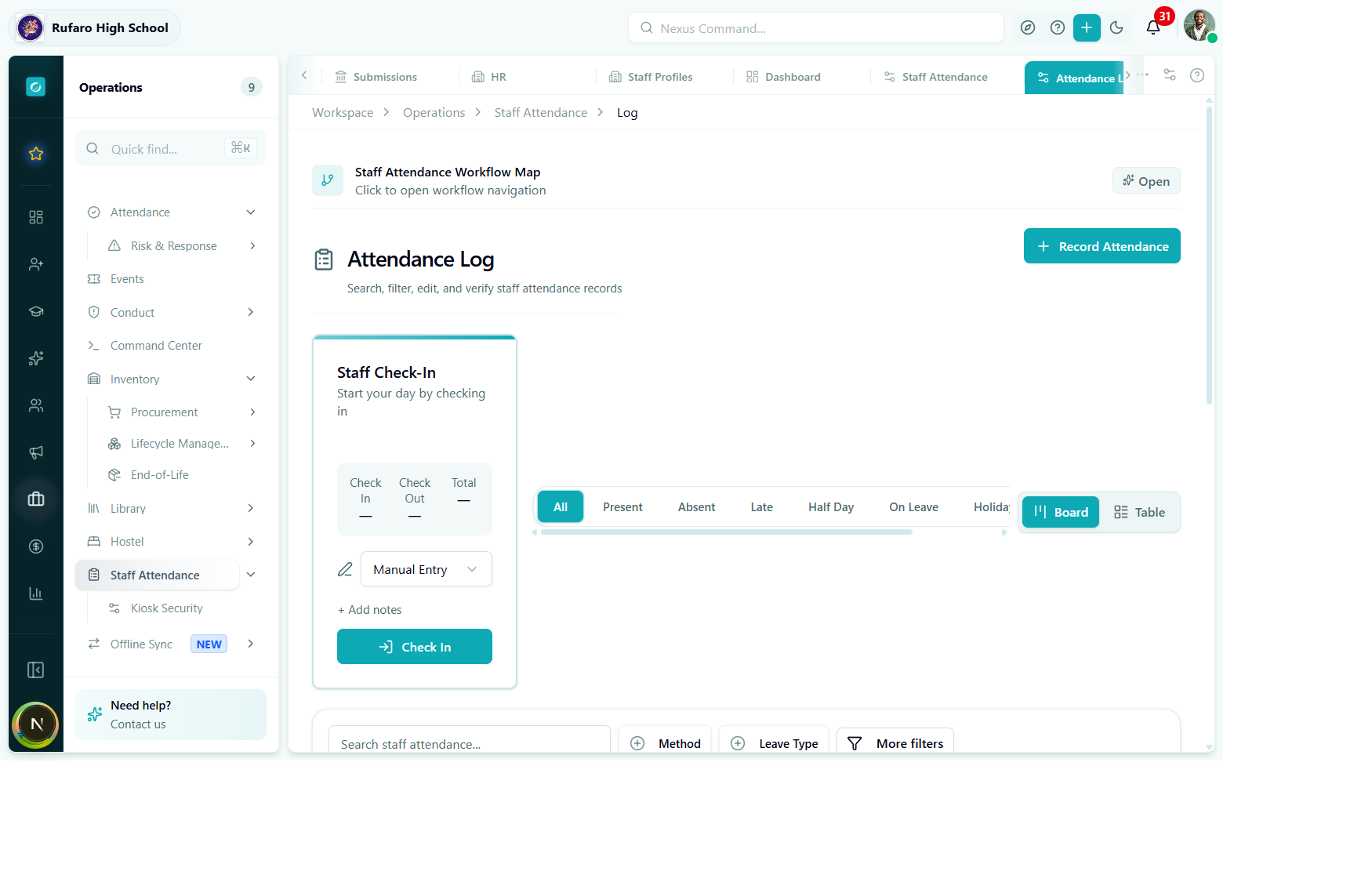
The Attendance Log. The self-service Check-In card sits on the left; the main content area shows the current day's records with filters and search.
Page structure
| Section | Description |
|---|---|
| Self Check-In card (left) | Lets the signed-in user record their own attendance quickly |
| Status tabs | Filter the list to one status: All · Present · Absent · Late · Half Day · On Leave · Holiday |
| Board / Table toggle | Switch between card grid and data table |
| + Record Attendance button | Open the Create Attendance Record dialog |
| Search bar | Full-text search across staff names |
| Method filter | Filter by marking method (Manual, App, Kiosk, RFID, etc.) |
| Leave Type filter | Filter on-leave records by leave type |
| More filters | Date range, department, verified/unverified, overtime |
Searching and filtering
Quick status filter
Click any of the status tabs at the top of the record list:
All | Present | Absent | Late | Half Day | On Leave | Holiday
The board/table immediately reloads with only records matching that status.
Text search
Type a staff member's name in the Search staff attendance... box. The list filters in real time as you type. Partial matches are supported.
Method filter
Click + Method to open the method picker. Select one or more marking methods:
Manual Entry- records created by administrators in the logApp- self check-in from the web appBiometric- fingerprint kioskRFID Card- card tapBarcode / QR- scanFace Recognition- facial recognition device
Leave Type filter
Click + Leave Type and choose from the leave type options to view only records with that leave reason.
More filters
The More filters panel exposes additional criteria:
| Filter | Description |
|---|---|
| Date range | Start and end date for the log query (defaults to today) |
| Department | Restrict to a specific department |
| Verified | Show only verified or only unverified records |
| Late only | Show only records with isLate = true |
| Overtime | Show only records with overtimeHours > 0 |
Board view
The Board view shows one card per staff member. Each card displays:
- Avatar and full name
- Department / subject area
- Status badge (colour-coded)
- Check-in time and check-out time
- "Late by X mins" indicator if applicable
Click any card to open the record detail drawer where you can edit or verify.
Table view
The Table view provides a sortable, paginated data table. Columns:
| Column | Sortable | Description |
|---|---|---|
| Staff Member | Yes | Name and avatar |
| Date | Yes | Attendance date |
| Status | Yes | Status badge |
| Method | No | Marking method icon |
| Check In | Yes | HH:MM check-in time |
| Check Out | Yes | HH:MM check-out time |
| Hours | Yes | totalHoursWorked |
| Late | No | Minutes late (if isLate) |
| Overtime | No | Overtime hours (if any) |
| Verified | No | Tick mark if verified |
| Actions | No | Edit · Verify · Delete |
Sorting
Click any column header with a sort indicator (up/down arrows) to sort ascending or descending.
Pagination
Records are paginated. Use the Next / Previous controls or the page number selector at the bottom of the table.
Editing a record
- In Table view, click the Edit icon (pencil) in the Actions column.
- The Edit Attendance Record dialog opens - identical to the Create dialog but pre-filled with existing values.
- Update the fields you need to change.
- Click Save Changes.
If a record has been verified, you need manage permission on staff_attendance to edit it. Editing a verified record resets the verifiedBy and verifiedAt fields - the record must be re-verified.
Verifying a record
Verification is the supervisor's sign-off. It locks the record against accidental edits.
- Verify single record
- Verify multiple records
In Table view, click the Verify button (checkmark icon) in the Actions column next to the record. A confirmation dialog appears; click Verify to confirm.
- Switch to Table view.
- Check the checkbox on each row you want to verify (or use the header checkbox to select all).
- The Bulk Actions bar appears at the bottom.
- Click Verify selected and confirm.
After verification:
| Field | Value set |
|---|---|
verifiedBy | UUID of the current user |
verifiedAt | Current UTC timestamp |
Deleting a record
Click the Delete icon (trash) in the Actions column. A confirmation dialog explains which record will be removed. Type the staff member's name to confirm.
Deleted attendance records cannot be restored. If you need to correct a record, use Edit instead.
Exporting records
Use the Export button (download icon) in the table toolbar to export the current filtered view:
- CSV - for spreadsheet analysis
- PDF - for printed reports
The export respects all active filters (date range, status, department, etc.).