Dashboard
The dashboard is the command centre for staff attendance. It shows a live snapshot of who is in, who is late, and who has not yet arrived - updated in real time via a streaming clock and auto-refresh.
Navigate to Operations -> Staff Attendance (the Dashboard tab is selected by default).
Layout overview
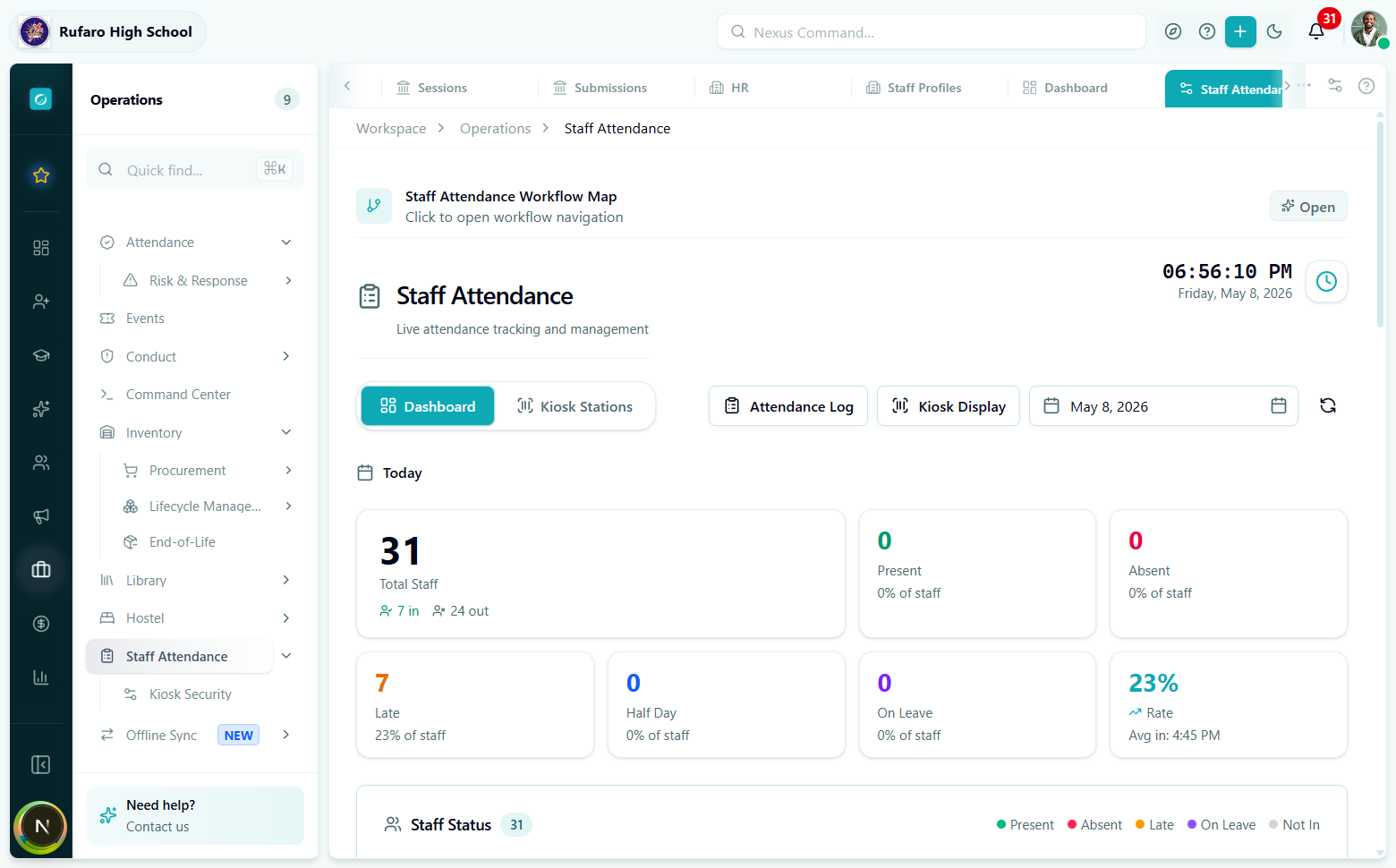
The full Dashboard view. The live clock at the top-right refreshes every second. Stat cards below show today's headcount across all attendance categories.
The page is divided into three zones:
| Zone | What it contains |
|---|---|
| Tab bar | Dashboard / Kiosk Stations / Attendance Log / Kiosk Display + date picker + refresh |
| Stat cards | Aggregated counts for today's attendance categories |
| Staff Status board | A per-person grid showing each staff member's current status |
Date picker
By default the dashboard shows today. To inspect a different day, click the date pill (shows May 8, 2026) in the tab bar and choose a date from the calendar. The stat cards and staff board reload for that date automatically.
The refresh icon (circular arrow) next to the date picker forces an immediate data refresh without changing the date.
Stat cards
| Card | What it shows |
|---|---|
| Total Staff | School headcount with "X in / Y out" sub-counters |
| Present | Staff marked present (percentage of total shown below) |
| Absent | Staff with an absent record or no record yet |
| Late | Staff whose check-in was after the configured threshold |
| Half Day | Staff marked half_day |
| On Leave | Staff on any authorised leave type |
| Rate | Attendance rate percentage + average check-in time |
The "7 in / 24 out" counter on the Total Staff card counts staff whose kiosk check-in session is currently open (inside school premises) vs. those who have checked out or not yet arrived. This is different from the present count, which records the attendance status for the whole day.
Staff Status board
Below the stat cards, the Staff Status section lists every staff member with a colour-coded status dot:
| Dot colour | Status |
|---|---|
| Green | Present |
| Red | Absent |
| Amber/orange | Late |
| Purple | On Leave |
| Grey | Not In (no record yet) |
Filtering the board
Use the status tabs above the board (All · Present · Absent · Late · Half Day · On Leave · Holiday) to filter to one category.
Toggle between Board and Table view using the buttons at the top-right of the status section:
- Board - card grid with avatar, name, department, and status badge
- Table - sortable columns with check-in / check-out times, minutes late, and verify action
Workflow Map
The teal banner at the top reads "Staff Attendance Workflow Map - Click to open workflow navigation". Clicking Open launches an overlay that shows the full pipeline (check-in -> verification -> reporting) in a visual node graph. This is helpful when onboarding new administrators.
Live clock
The clock in the top-right corner of the page (06:54:40 PM / Friday, May 8, 2026) is a live display - it does not affect the date the dashboard is querying. Use the date picker to change the query date.
The clock icon next to it is a shortcut to jump to today's dashboard regardless of which date is currently selected.